
Magicento
Magicento is a PHPStorm plugin for Magento developers. Features include:
Goto for factories and template paths, autocomplete for factories, xml files and class names, documentation for xml nodes, evaluation of PHP code inside Magento environment, and much more! check the features and videos below
Created by Enrique Piatti


 (enriquepiatti)
Download
for Magento 1.x
for Magento 2.x
After completing the payment a new Magicento user will be generated for you automatically and you will get a special download link for your unique version of Magicento
(next updates are free for one year).
Magicento license is by User,
it can be used in multiple devices, but always by the same user.
If you are a company needing a bulk license please contact me.

30 days money-back guarantee!
I'm pretty sure you will love Magicento. I'm a Magento developer too, I use Magicento everyday and I can guarantee it's a big time saver, also you will enjoy much more developing in Magento with the help of Magicento.
But If you are unsatisfied for any reason, please email me and I will issue a refund.
Installation (for Magicento2 see below)
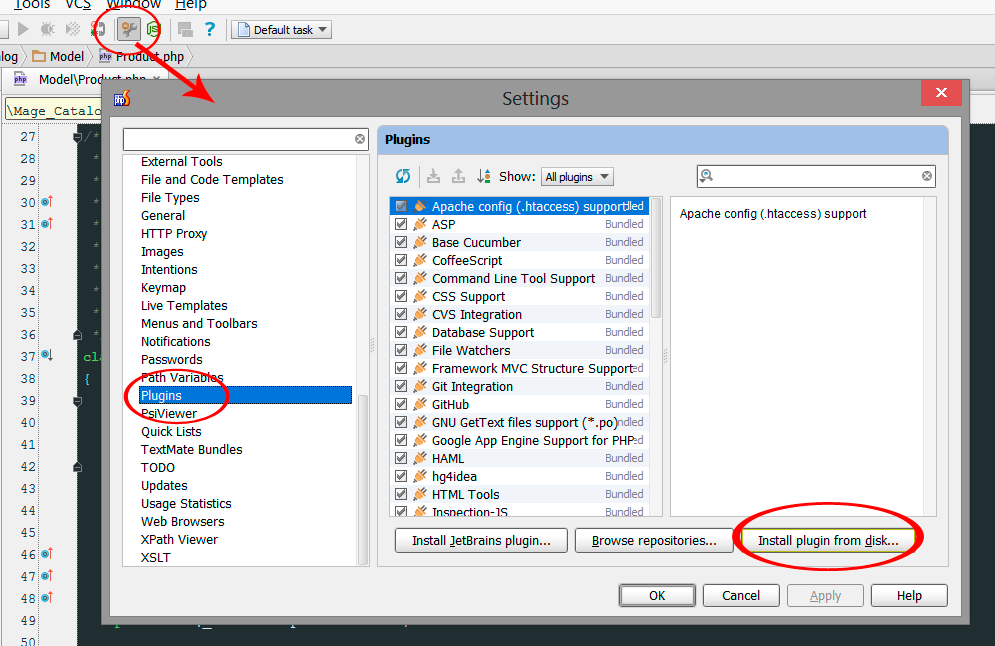
- Go to File > Settings (is a good idea to close all projects first, try it if install fails)
- Select Plugins option
- Click "Install plugin from disk..." button
- Select your magicento.jar file
- Save the settings and restart the IDE
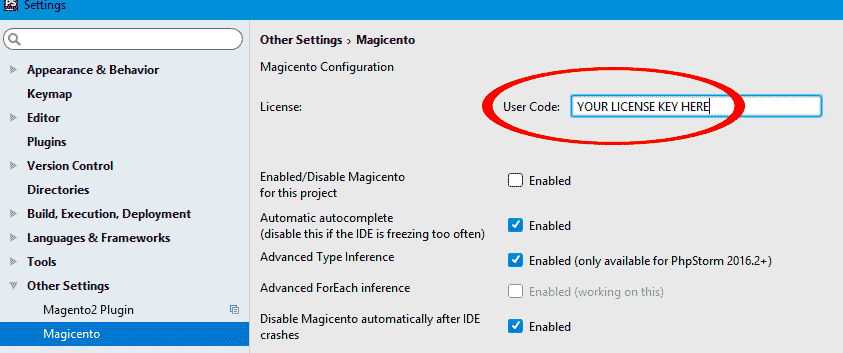
- Put your license key in Magicento Settings
Also check this FAQ if you have this problem: Cannot install Magicento. PHPStorm is closed automatically after trying to install the plugin
Magicento2 Installation
- Download Magicento2 using your private link
- install it manually (see Magicento1 installation above)
-
Remove Magicento1 shortcut from PhpStorm settings keymap, leave only the shortcut for Magicento2 (Magicento2 will use ALT+M too, you can also change the shortcuts, but Magicento2 will allow you to use the same shortcut for both Magicento1 and 2)
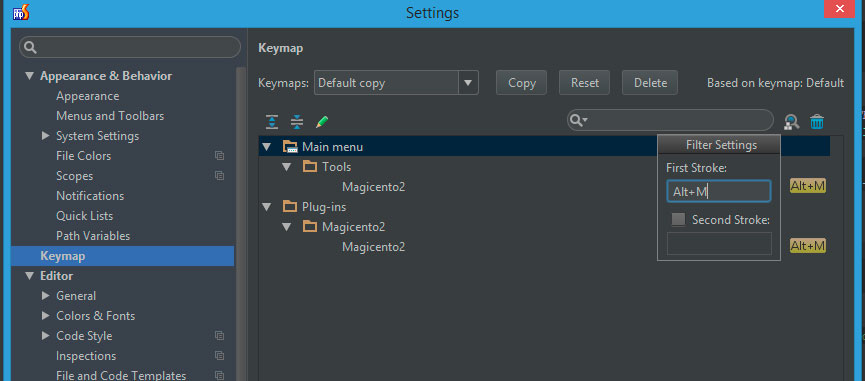
- For Magento1 projects remember to use ALT+M > Disable Magicento2 so you can use Magicento1 there
Features
The other actions are just extensions of the default PHPStorm actions, so you can use the normal shortcuts:
- CTRL+SPACE (autocomplete)
- CTRL+B (⌘B) or CTRL+CLICK (⌘-Click) or MIDDLE CLICK (goto)
- ALT+ENTER (⌥(OptionKey)+ENTER in MAC) (intentios)
- CTRL+Q (documentation)
NEW FEATURES (v3.0.2)
See changelog for more changesUse CTRL + B when cursor is over some event name in config.xml
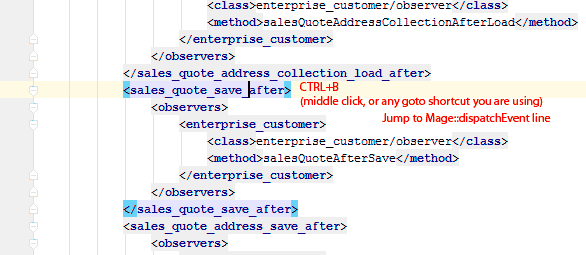
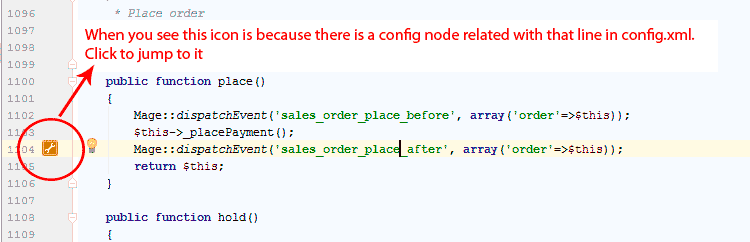
Click on the linemarker present on Mage::dispatchEvent calls, if there is an observer it will jump to config.xml definition of them
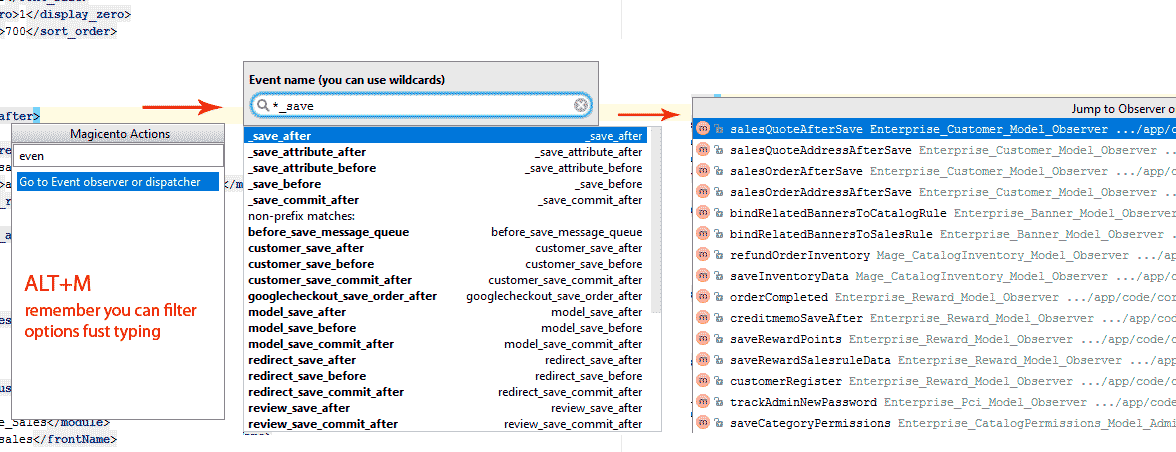
Event search (now works with dynamic events too like "_save_after"
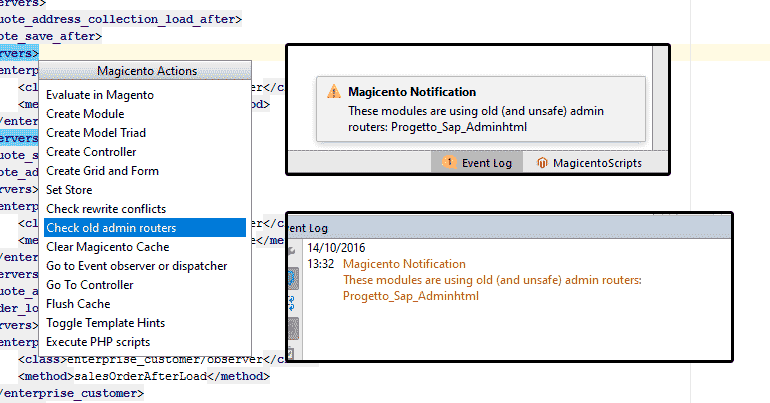
Search for old (and unsafe) admin routers: https://magento.com/security/patches/supee-6788-technical-details
It will check them automatically too
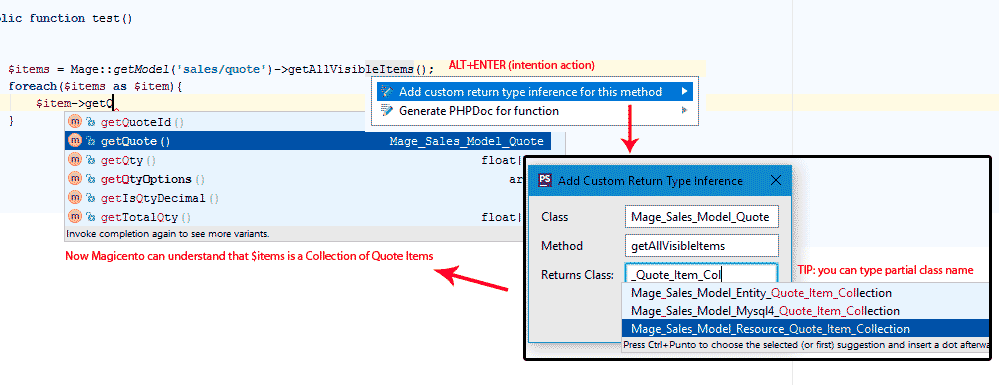
If Magicento is not recognizing the return type for some method you can help telling the class it should interpret
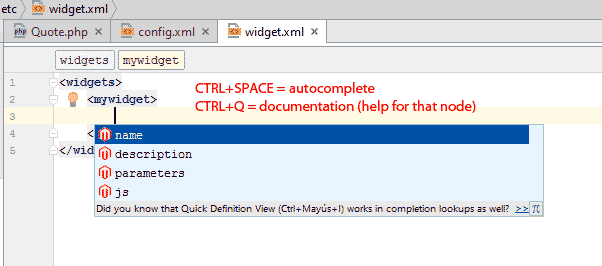
Use CTRL+SPACE and CTRL+Q as always inside any widget.xml
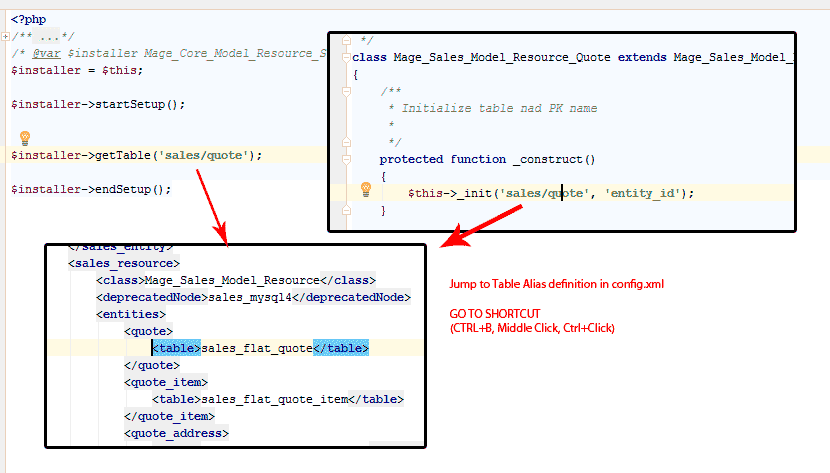
Use CTRL+B when cursor is over some string representing some table alias
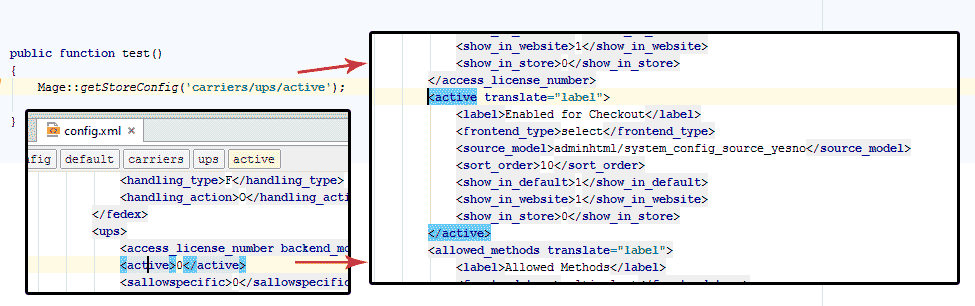
Use CTRL+B when cursor is over some System Configuration field to jump to system.xml definition of that field
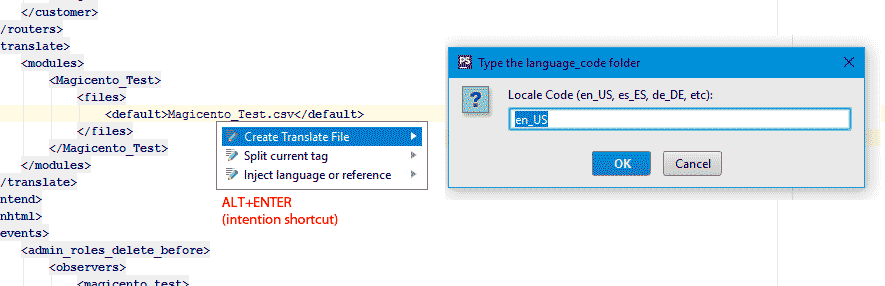
Use ALT+ENTER (or your intention action shortcut)
NEW FEATURES (v2.9.0)
Use ALT + M > Create Grid and Form anywhere.
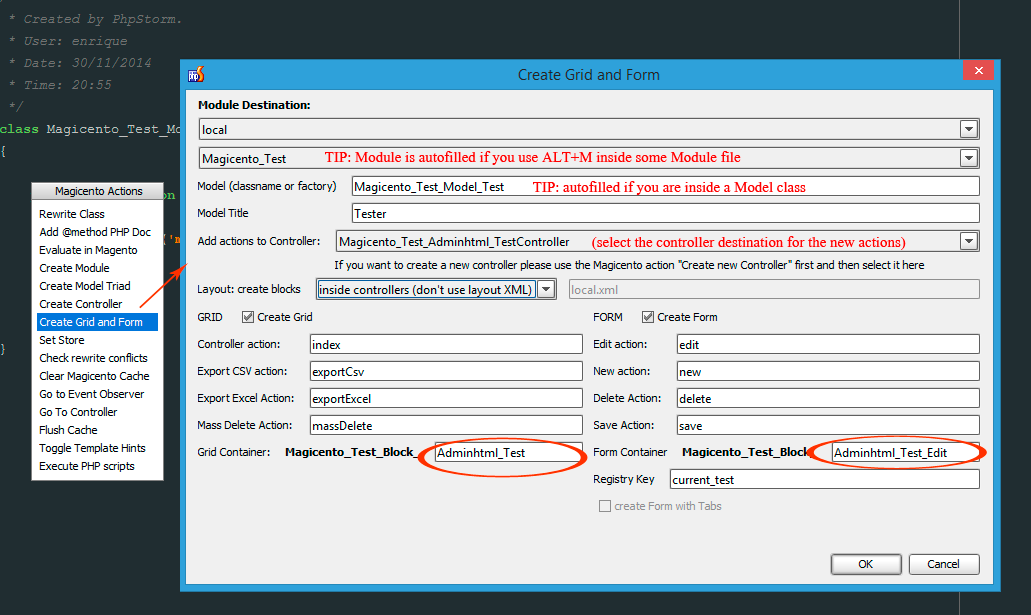
All the fields have tooltips to help you understand what it does if is not intuitive enough.
TIP: is you use ALT+M inside the model class you want to create the form for, then Magicento will autofill some options for you.
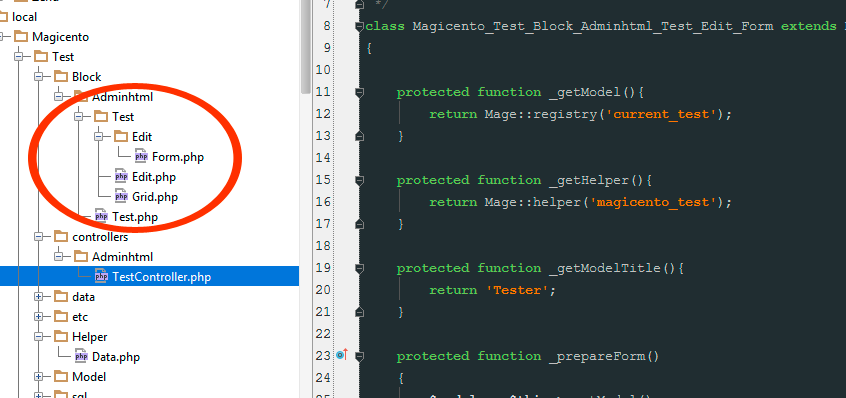
These are the new files (Blocks) created by Magicento. Also there are new actions inside the controller (if you select that option).
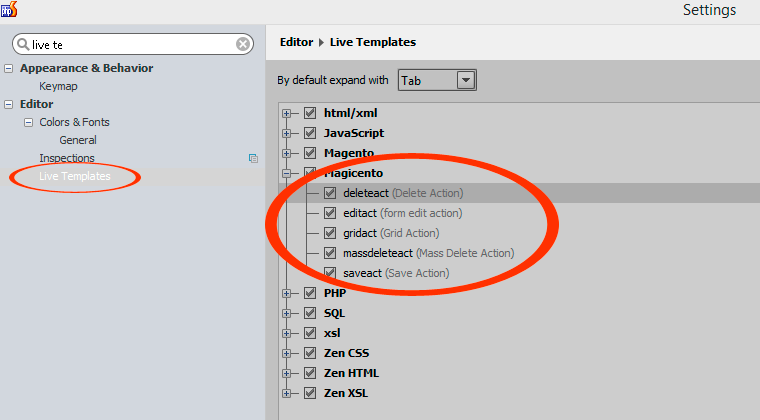
Here you can edit the templates used to create the controller actions
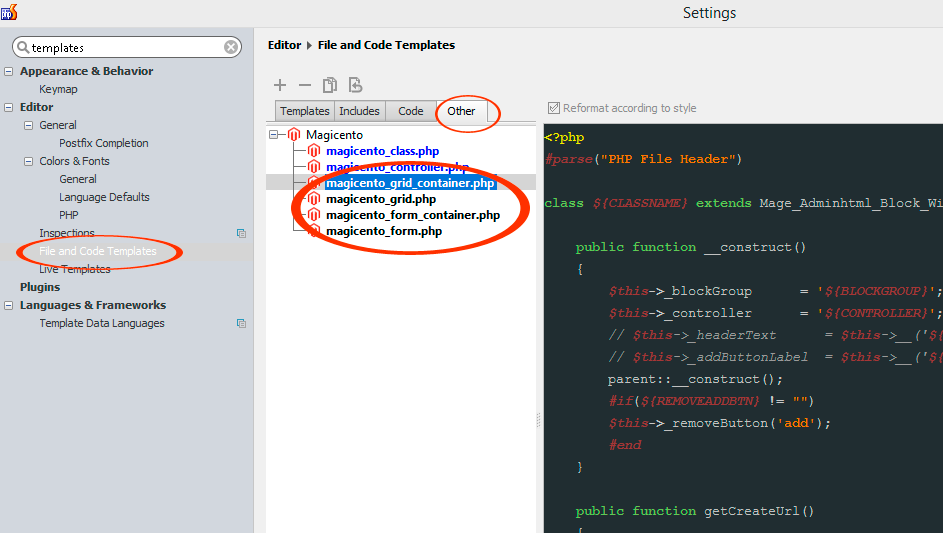
Here you can edit the templates used to the Grid and Form Blocks
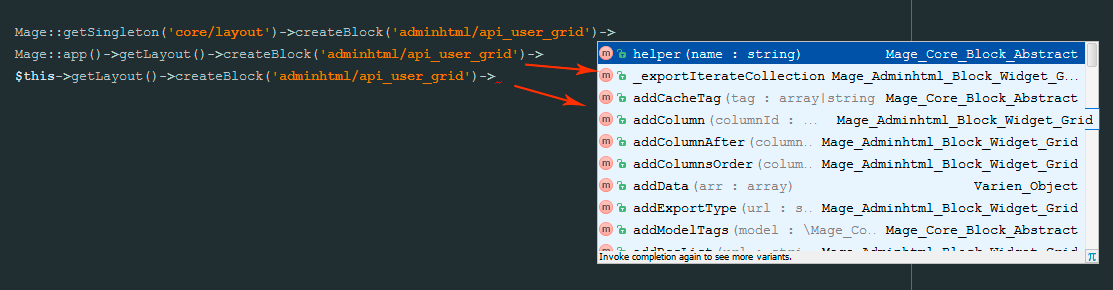
This autocomplete was not working before
Use ALT + M > Add to solved rewrite conflict list when editing some class with a rewrite conflict.
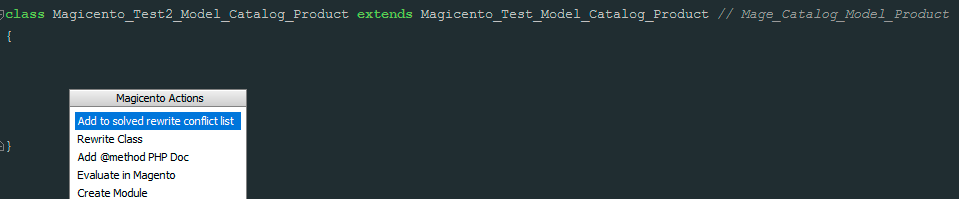
Adding the class to "Solved Rewrite conflict list" will avoid Magicento warnings about that conflict.
You can do the same from Magicento settings, this is just an easier and faster way to do that.
- URI autocomplete doesn't need the first character to work now. Example: Mage::getModel([CTRL+SPACE HERE])
- Evaluate with Magento action remember the last evaluated code (no need to type it again when prompting)
- Autcomplete works for Mage::getStoreConfigFlag too. Mage::getStoreConfigFlag('[CTRL+SPACE HERE]')
- Bugfixes:
- Foreach type inference when using "as $index => $value" was assigned to $index instead of $value
- Wrong type inference for $this->getResource() inside Collections
- Go to Controller/Action from handle inside admin layout xml files was not working
- Go to layout xml handle from action inside admin controllers was not working
NEW FEATURES (v2.8.6)
You can assign multiple Magento folder paths now
This could be useful with custom folder structures like the one below.
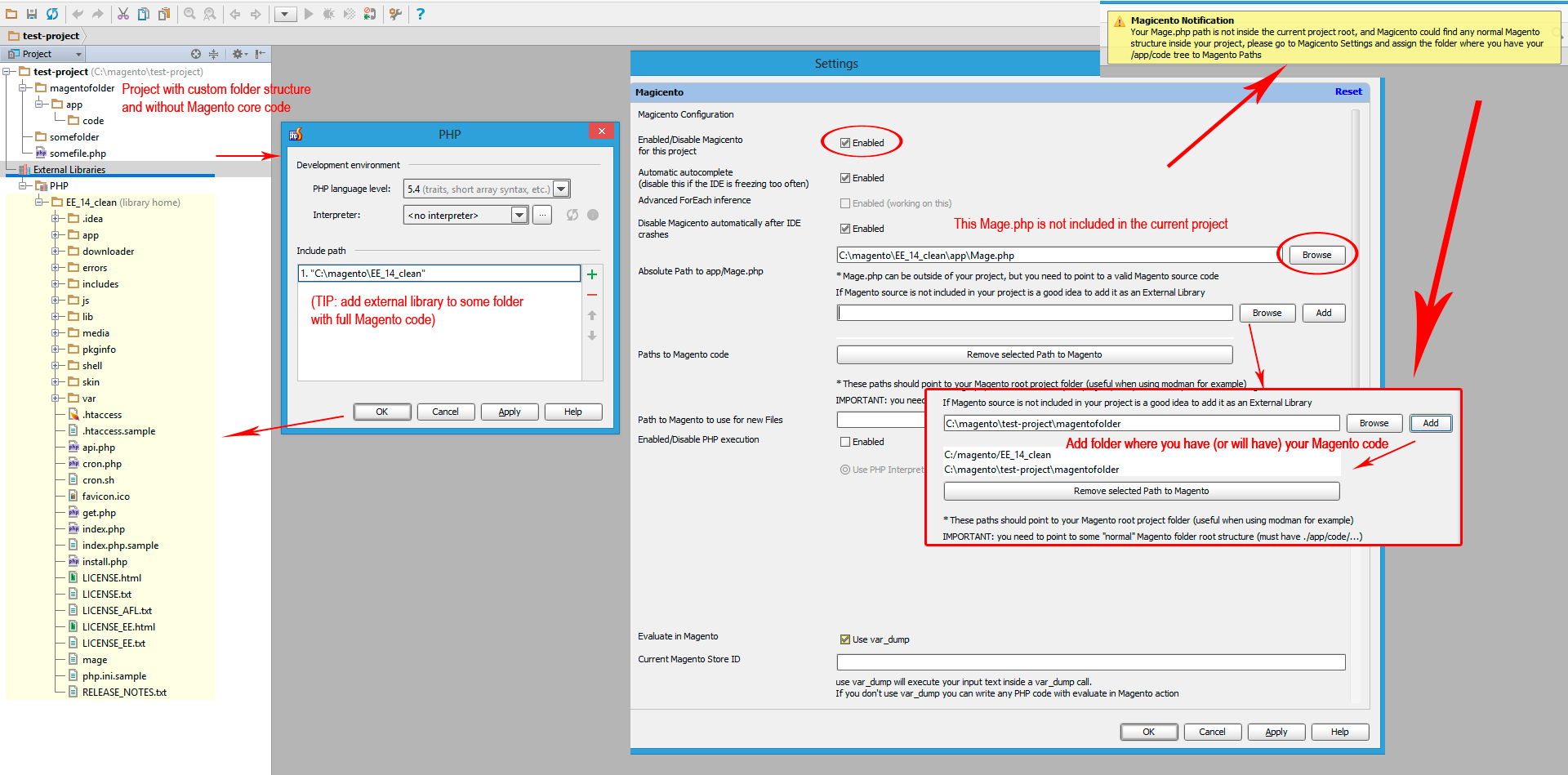
Magento src is not on the project root, and it doesn't have the full code from Magento inside
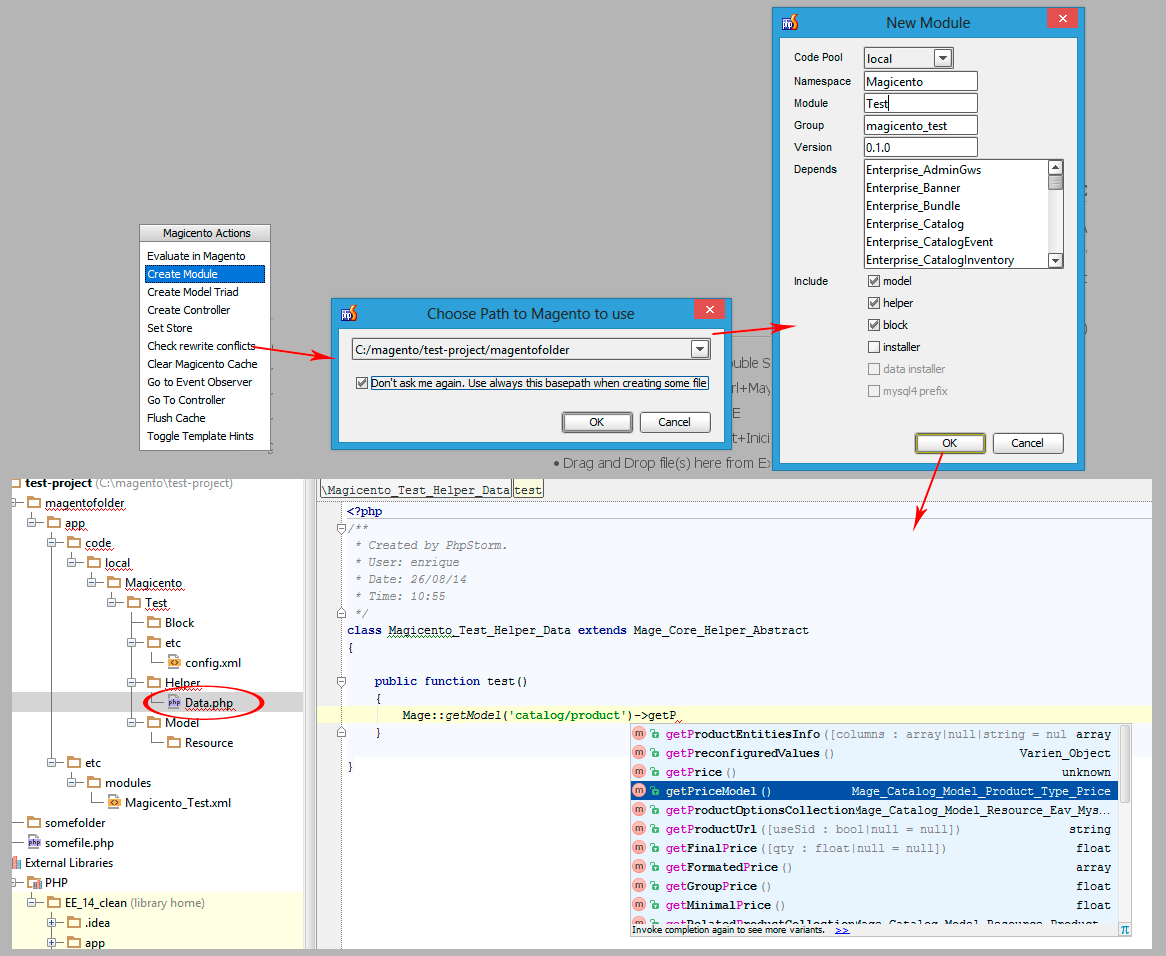
Magicento will try to detect the correct folder to create the new files (controllers, models, etc) but if it can't decide it you will be asked where you want to create them.
In the example above that is what happening when trying to create a new module
NEW FEATURES (v2.8)
Use (anywhere) ALT + M > Create Controller
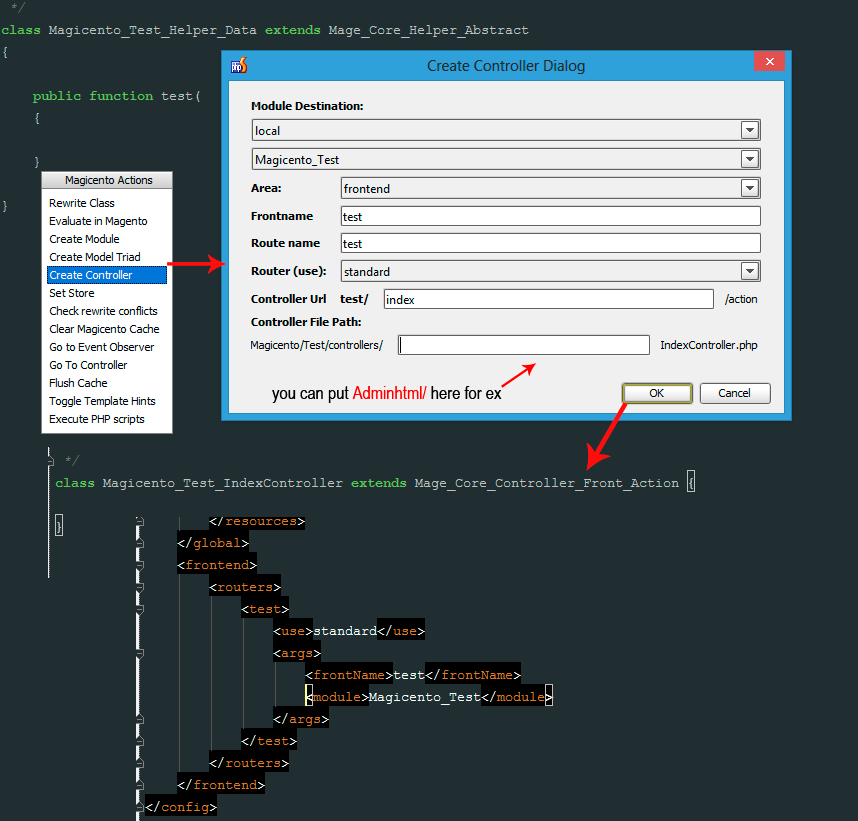
NOTE: If you choose an existing frontname or routename it will rewrite the original controller from that frontname or routename
Use (anywhere) ALT + M > Go to Controller
Put your Magento URL (or just the relative path: "frontname/controllername/action")
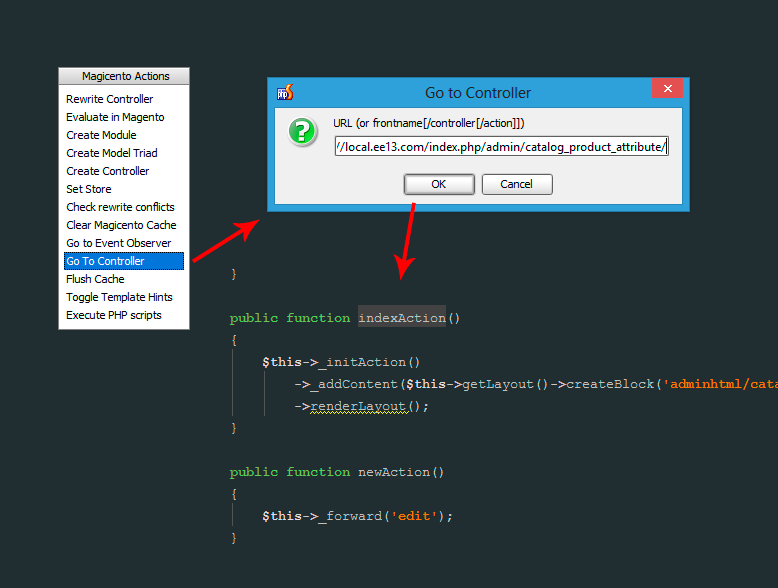
NOTE: it doesn't support URL rewrites yet
Use CTRL + B when cursor is over some handle in any layour XML file
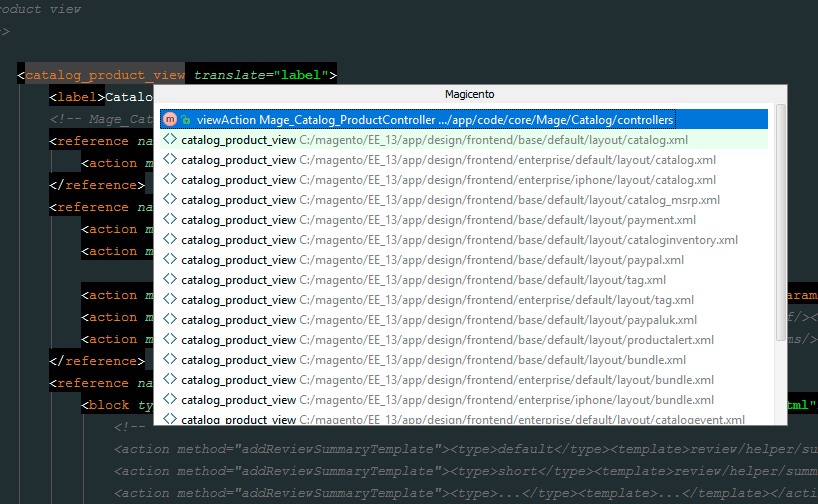
NOTE: if Magicento can find the controller/action for that handle it will be shown as the first item in the list (the other items are references to other places where that handle is used inside the Layout)
Use CTRL + B when cursor is over action method
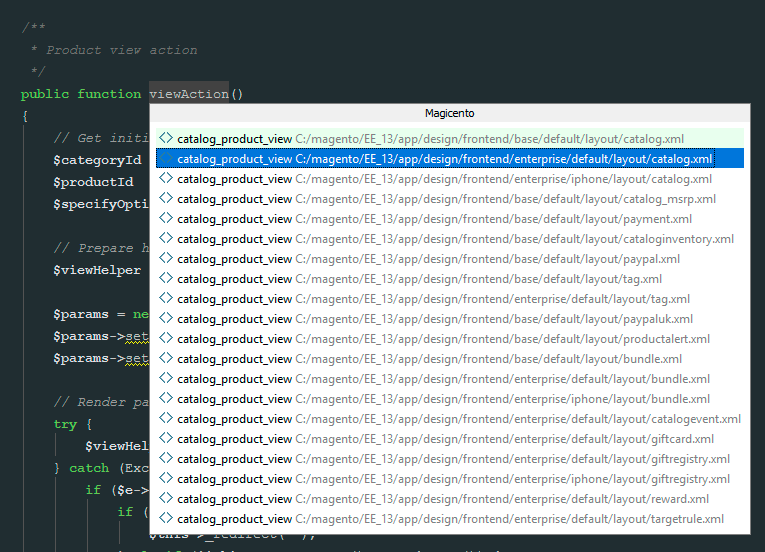
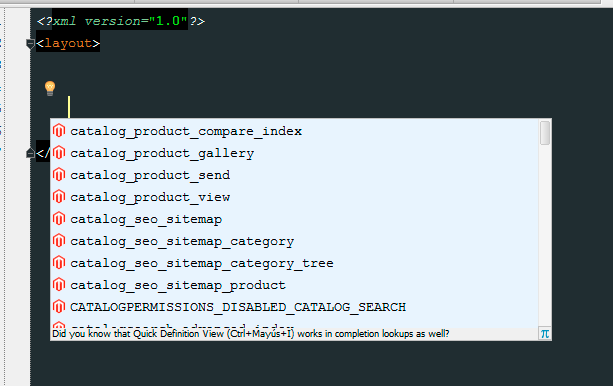
Use CTRL + SPACE to get al possible handles (using controllers actions combinations)
Use ALT + M > Go to Template from other Package Theme when editing some .phtml file.
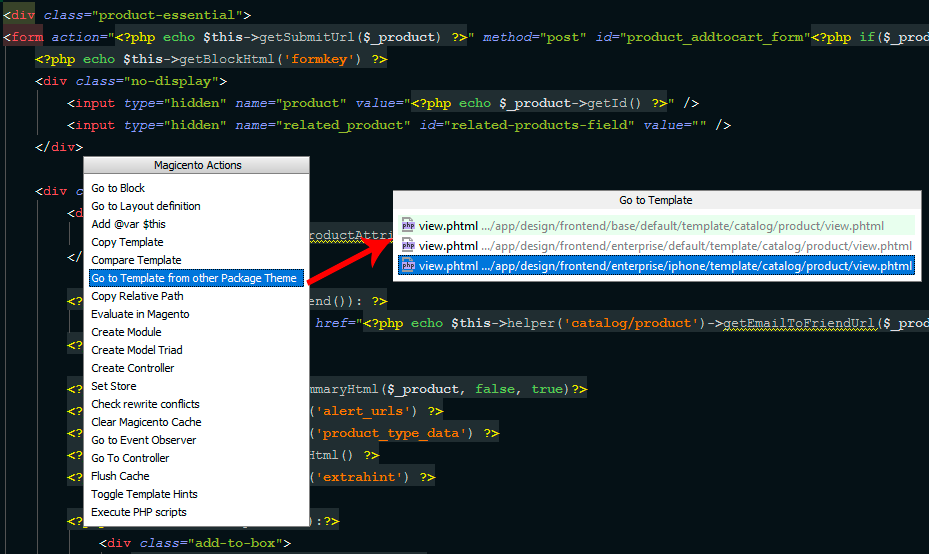
You will be able to jump to the same template from other packages themes
Use ALT + M > Copy Relative Path when editing some .phtml file.
This could be specially useful for Windows users, to avoid getting the backslash "\" when copying the file path from PhpStorm
Use CTRL + SPACE. Magicento should detect better the class when using chained methods.
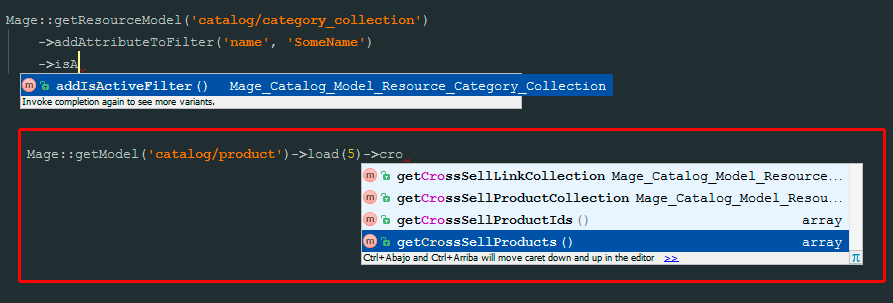
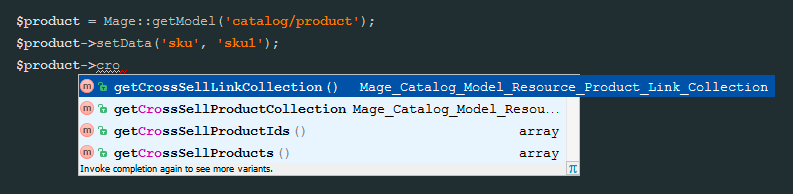
Anyway, the support for this is not complete (see the example below). The problem here is that Magento is using a bad @return PHPDoc.
Magento sometimes is using things like "@return Varien_Object" and it should use "@return $this" instead when the method is returning $this.

TIP: to fix the above problem, try using a non chained version of the same code:
Use CTRL + SPACE when cursor is inside Mage::registry('[HERE]')
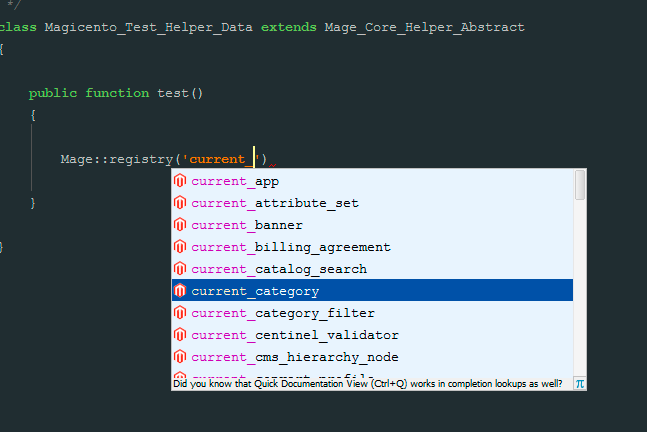
Use CTRL + SPACE to get code completion
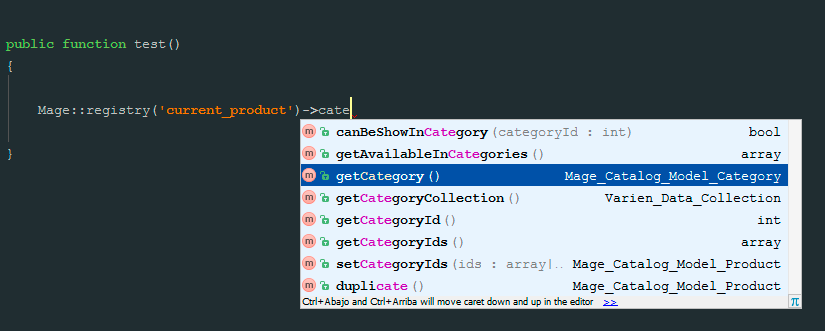
NOTE: this only works for keys originally registered in Magento, is not dynamic
- Compare with original File Action now works with original files from "Community" pool
- Evaluate in Magento is showing the result inside the information panel too (to allow copy and check previous results). And is not showing with a dialog if the result is too long.
- Added autocomplete for system config paths inside $installer->setConfigData('CTRL+SPACE HERE')
- Compare templates and layout files dialog now only shows packages and themes containing the file to compare (same relative path)
- Compare With Original action works with original files not included in the current project (Mage.php not in the current project)
- Added "go to character position" support for Magicento PHP Scripts. Just append "::POSITION" to the filepath to open (see more details when creating a Magicento Php Script)
NEW FEATURES (v2.7)
You can now execute IDE actions from your Magicento PHP Scripts.
You just need to assing some values to the $GLOBALS['MagicentoActions'] var.
Available Actions:
- $GLOBALS['MagicentoActions']['alert'] = 'Some text here to show with an alert inside the IDE';
- $GLOBALS['MagicentoActions']['info'] = 'Text here will be shown with a Notification of type INFO';
- $GLOBALS['MagicentoActions']['warning'] = 'Text here will be shown with a Notification of type WARNING';
- $GLOBALS['MagicentoActions']['error'] = 'Text here will be shown with a Notification of type ERROR';
- $GLOBALS['MagicentoActions']['refresh'] = array($absoluteFilePath,...); // These files will be refreshed (useful if you change the content of some file inside this script)
- $GLOBALS['MagicentoActions']['open'] = array($absoluteFilePath,...); // These files will be opened (useful if you create some file)
Check this example for more details (you can download and execute it in yout environment)
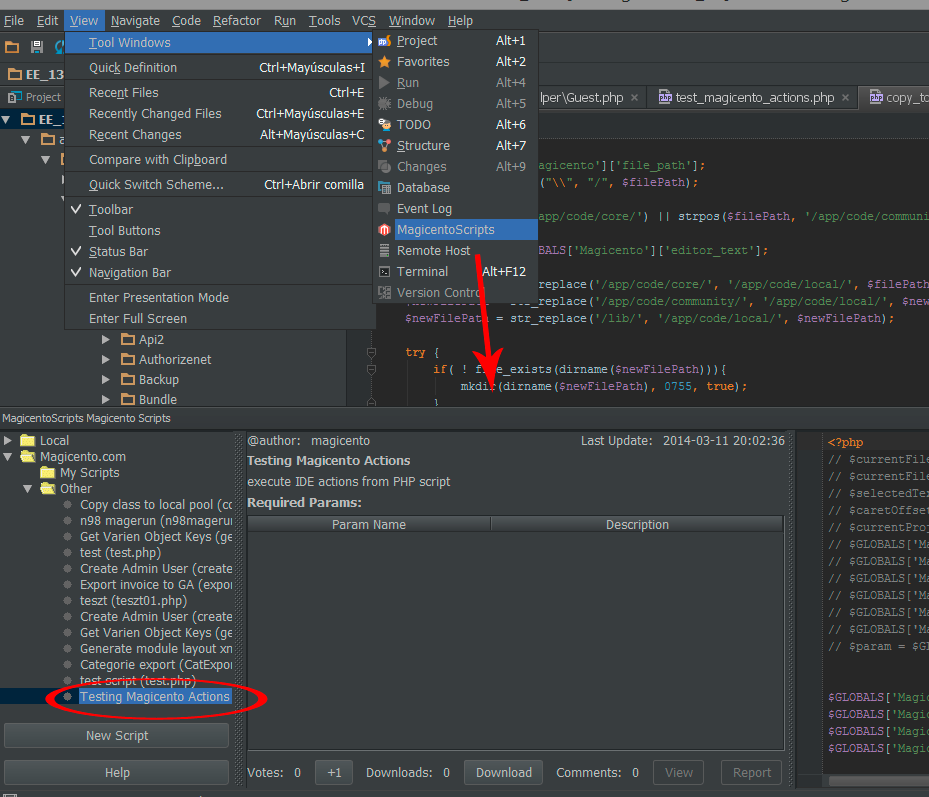
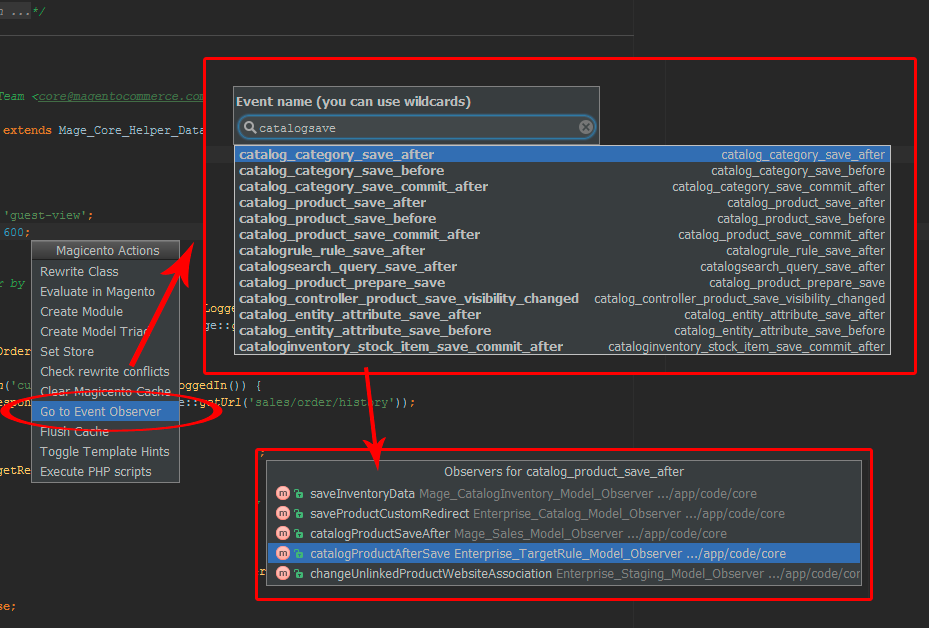
Use ALT + M > Go to Event Observer anywhere.
type the name of the event (or part of it)
Magicento will show you the observers for that event
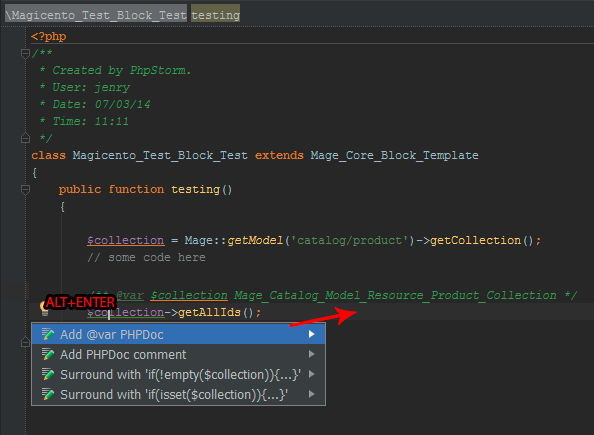
Use ALT + ENTER (or your intention shortcut) when the cursor is over some variable in PHP
- Goto for skin images. Use CTRL+B (CTRL+CLICK) when the cursor is over any skin url (filepath ending with .jpg .gif or .png)
- Autocomplete and Goto for "helper" method inside Block classes: $this->helper('[CTRL+B] and also [CTRL+SPACE]')->[CTRL+SPACE]
- Improved validation for Module Creator dialog
- Magicento menu (ALT+M) now works when there isn't any opened file
- New Copy Layout File action. ALT+M inside any .xml from the layout to copy it to another package/theme
- New Compare Layout File action. ALT+M inside any .xml from the layout to compare it with another package/theme
- Added new config for omitting Magicento notifications. Set a list of regular expressions and the messages matching that (and not marked internally as important) won't be show anymore
- Added foreach item type inference when looping collections annotated with @var. Ex:
/** @var $collection Mage_Catalog_Model_Resource_Product_Collection */
foreach($collection as $item){
$item->[CTRL+SPACE]
}
// I'm working on adding more intelligence to the foreach item type inference.
NEW FEATURES (v2.6)
Use CTRL + SPACE inside a foreach with a collection.
Magicento will infere the model type automatically. You don't need to add @var phpdocs.
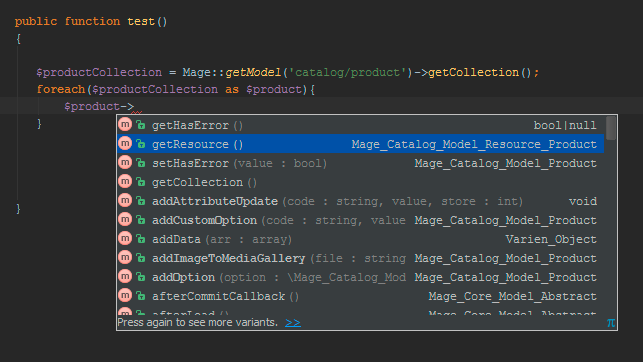
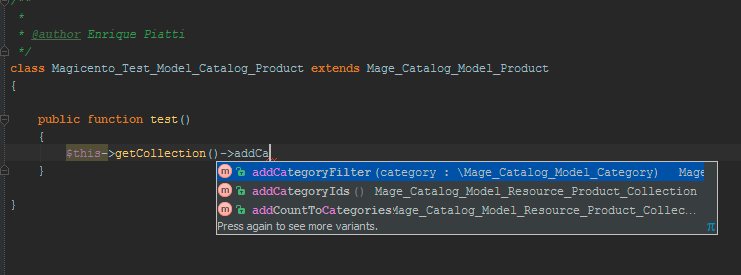
Use CTRL + SPACE after
->getResource()
->_getResource()
->getCollection()
->getResourceCollection()
should work fine everywhere.
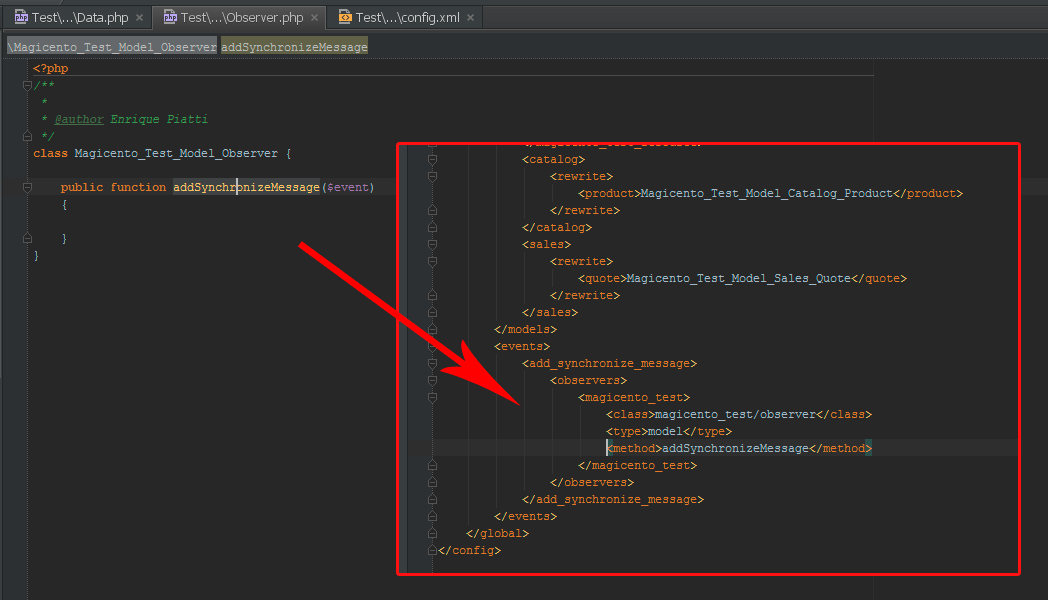
Use CTRL + B (or CTRL+CLICK) when the cursor is over some method in Observer.php
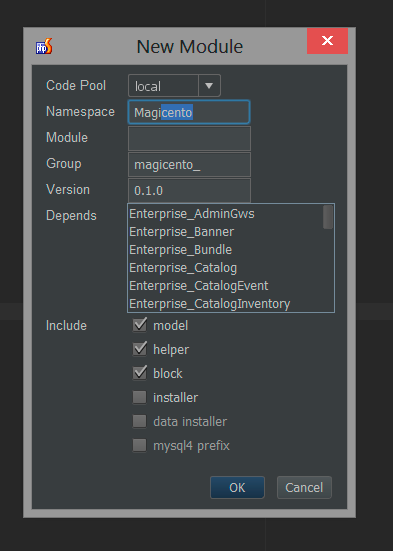
Added data installer, mysql4 prefix is optional, autocomplete for namespaces.
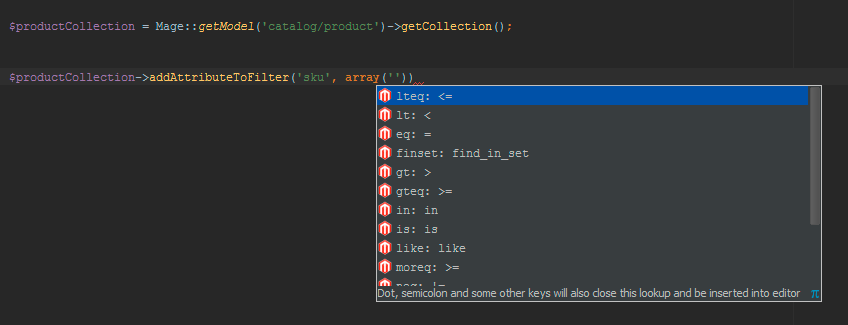
Use CTRL + SPACE inside addAttributeToFilter and addFieldToFilter
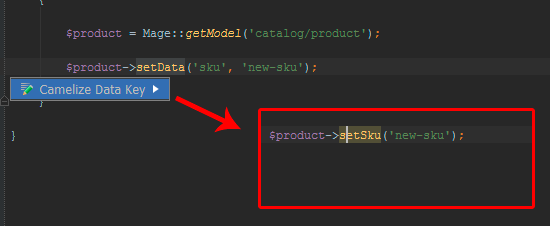
Use ALT + ENTER to camelize ->getData('key') or ->setData('key', $value)
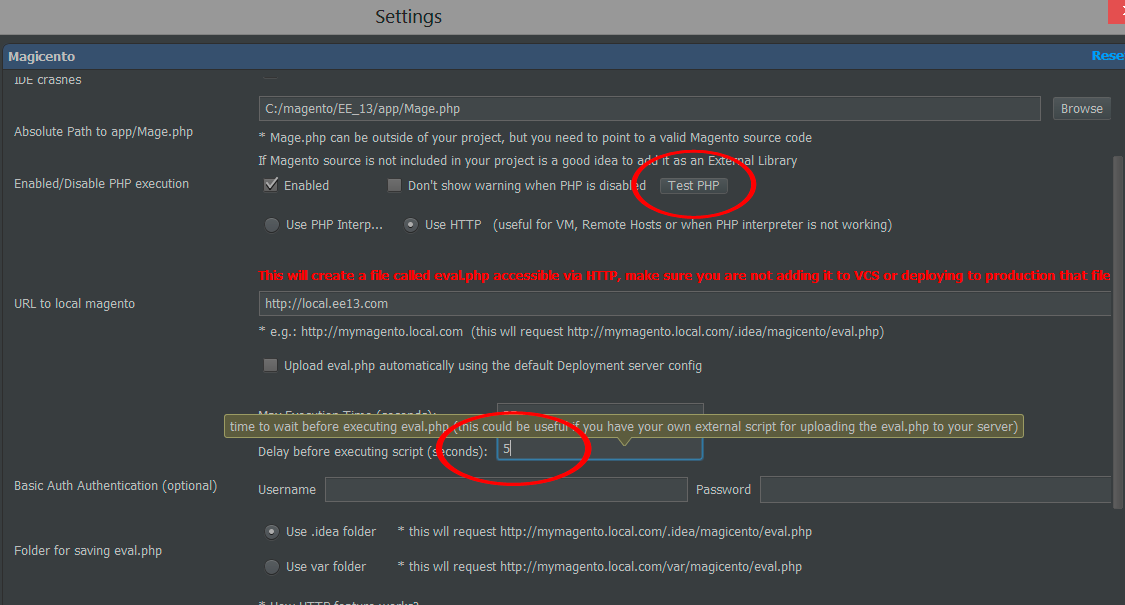
New delay setting for PHP features.
It will delay the excution of eval.php, this could be useful for example if you need to upload with some sync script the eval.php to your server
New test button for checking if PHP features are working with the current settings
NEW FEATURES (v2.5)
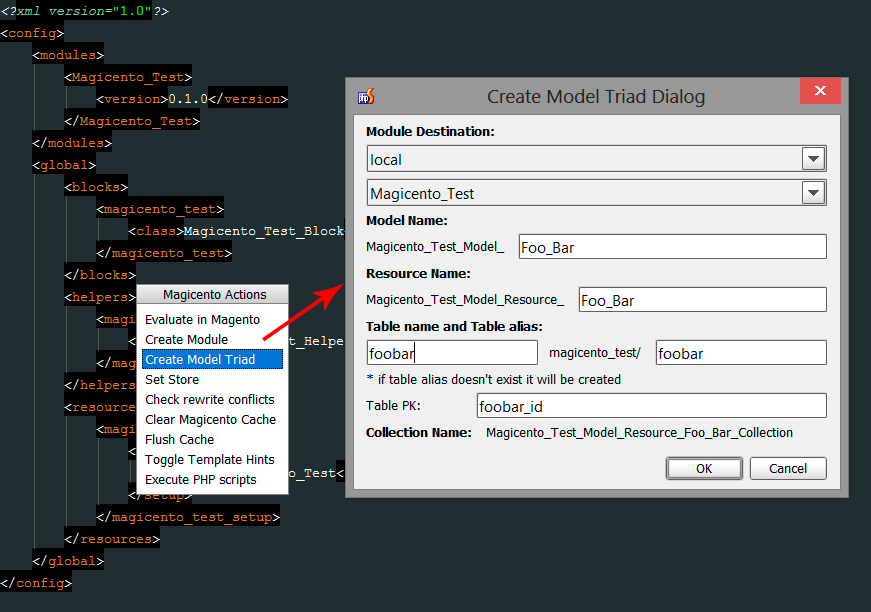
Use ALT + M > Create Model Triad anywhere (the cursor must be inside the editor (an opened file)
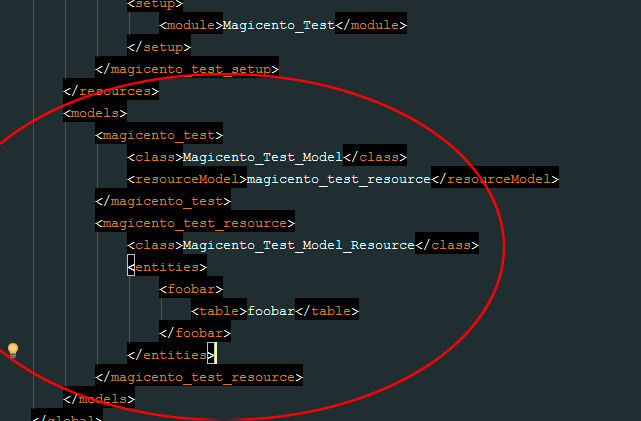
Magicento will open a dialog for creating the Model, Resource and Collection (with the required nodes in config.xml if it doesn't exist)
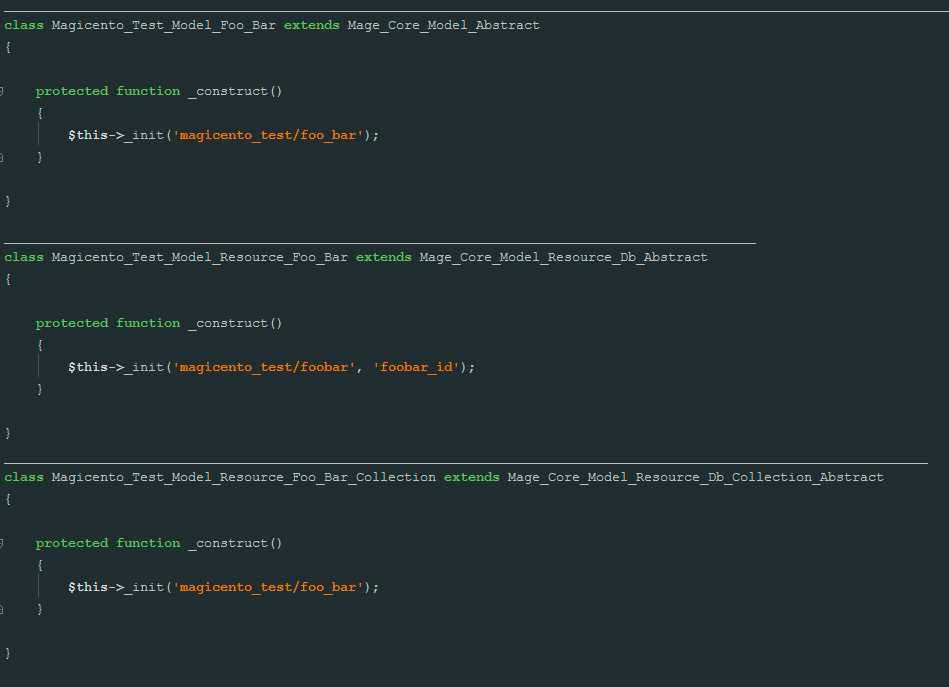
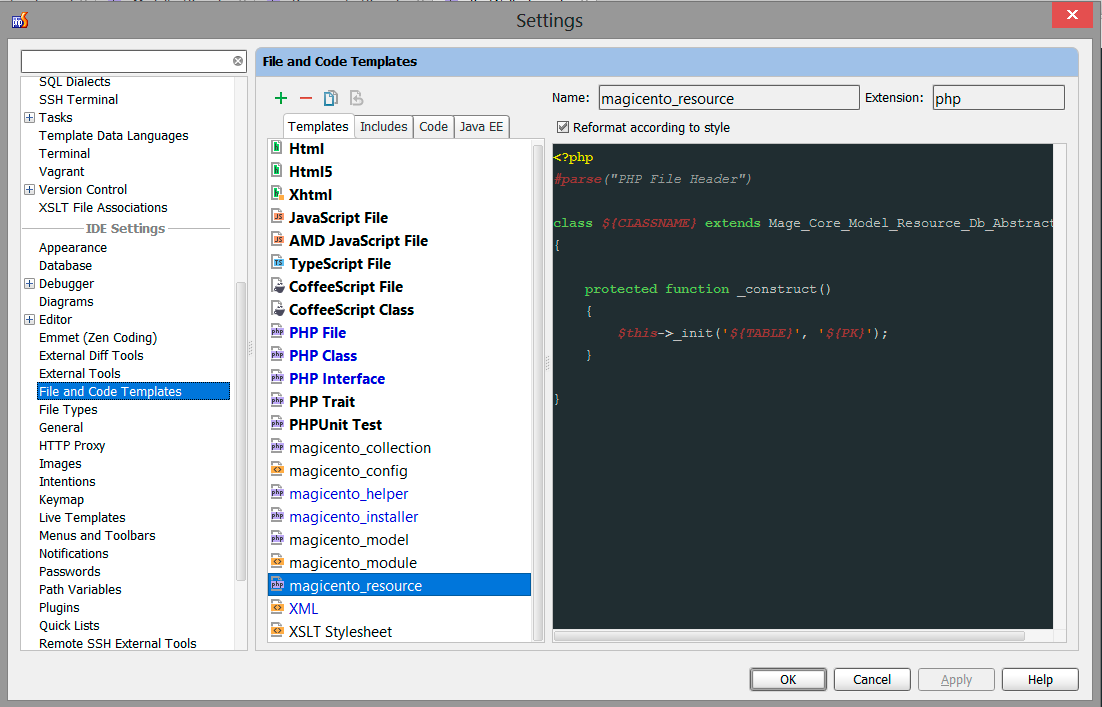
You can edit the templates used to generate the Model, Resource and Collection class:
Use ALT + M > Add @method PHP Doc when the cursor is inside a Model class
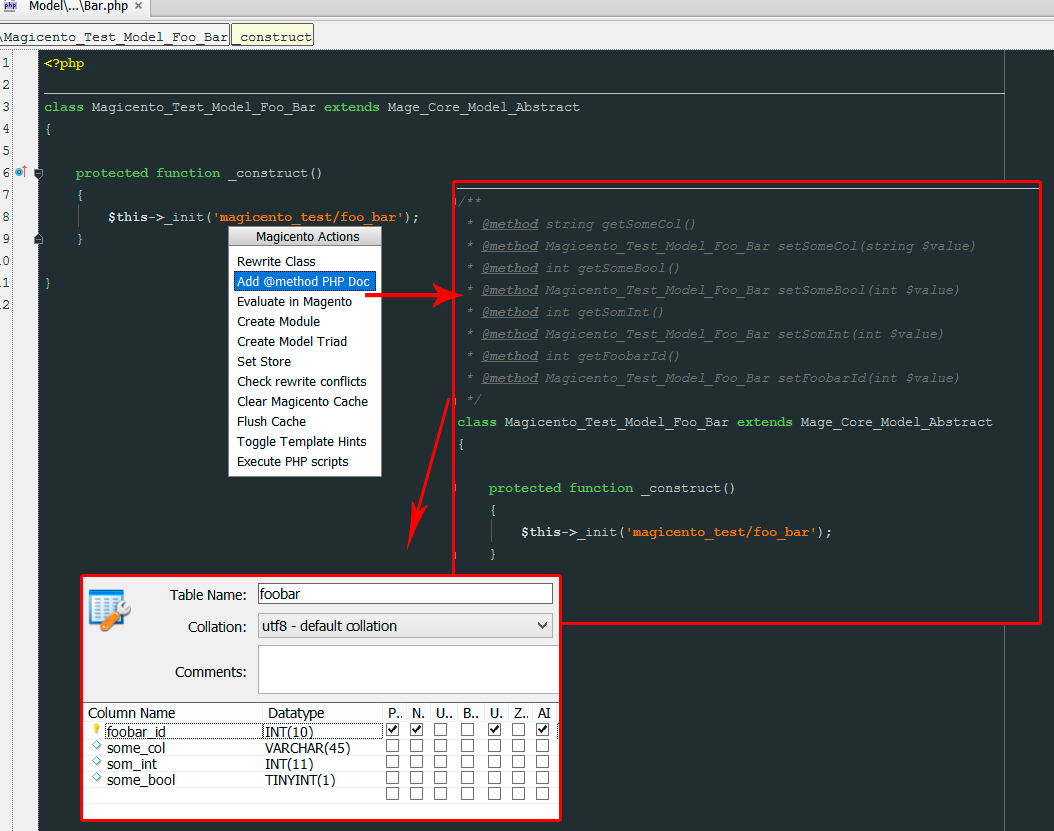
It will read the fields from the table associeted with that Model in your Magento DB
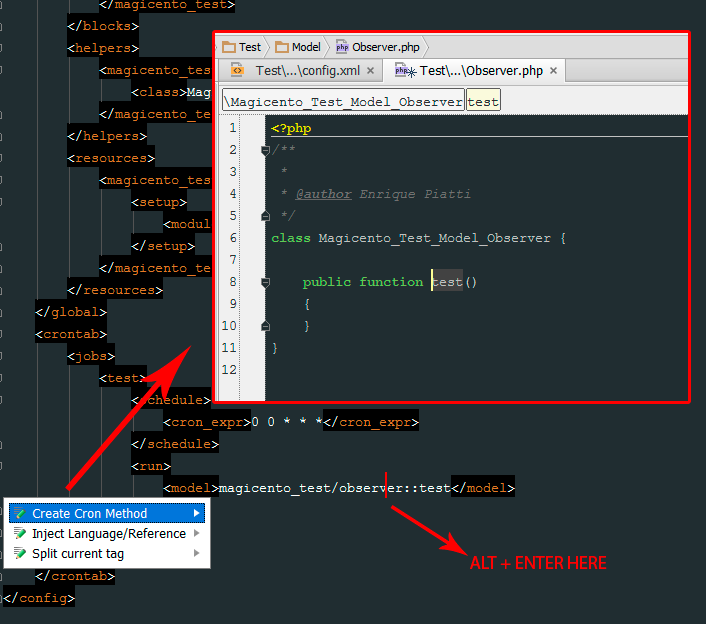
Use ALT + ENTER (normal shortcut for intention actions) when the cursor is over your cron method definition
Magicento will create the method in the corresponding class (and will create the class if it doesn't exist too).
Go to File > Settings > Magicento
NEW FEATURES (v2.4)
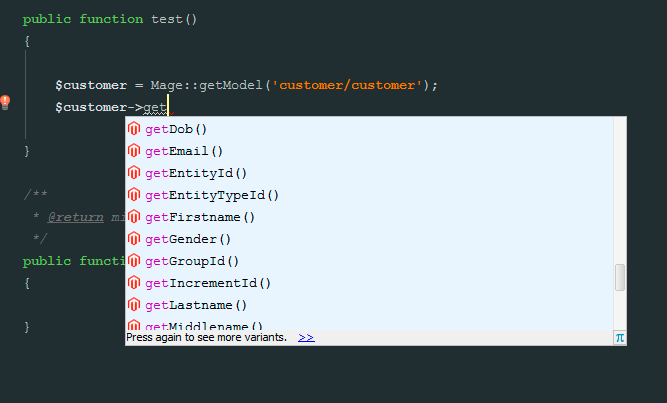
New autocomplete for get/set/uns/has methods on models (just use CTRL+SPACE as always, it works when you have the prefix already typed: Mage::getModel('catalog/product')->get[CTRL+SPACE HERE])
The first time you will probably need to read the data keys for your model from your Magento DB:
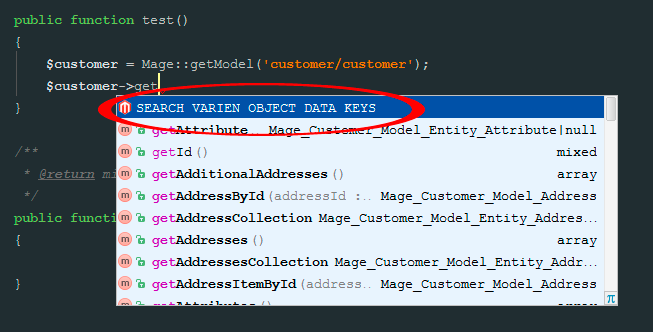
If the PHP features are not working fine in your Project, you can use the Magicento script called: Get Varien Object Keys
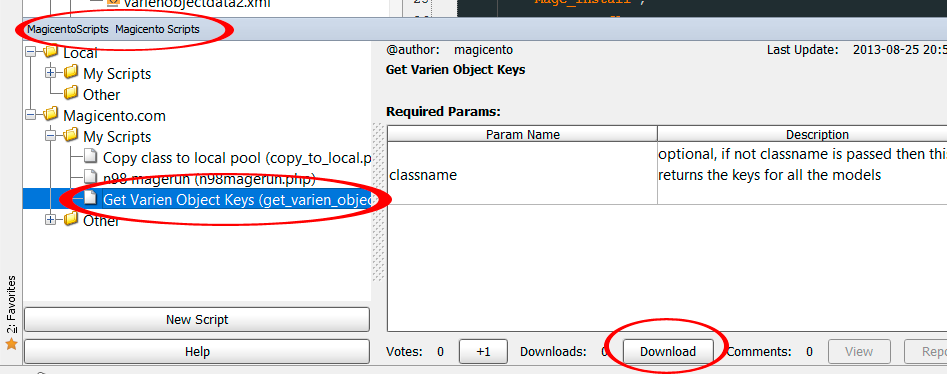
* NOTE: You will probably see that file inside the "Other" folder
Download that script, it will be saved into:
[YOUR PROJECT FOLDER]/.idea/magicento/scripts/magicento/get_varien_object_keys.php
You can use that script as a reference for generating the .xml used by Magicento for all your models.
You will probably need to adapt it a bit (for example execute Mage::app(); first), and upload and execute that script to your Magento server, manually.
If you are generating the XML in that way, save it to:
[YOUR PROJECT FOLDER]/.idea/magicento/varienobjectdata.xml
Use ALT + ENTER (normal shortcut for intention actions) when the cursor is over the filename for the new layout update inside your confg.xml
Magicento will let you choose the package and theme and will create and open that file for you.
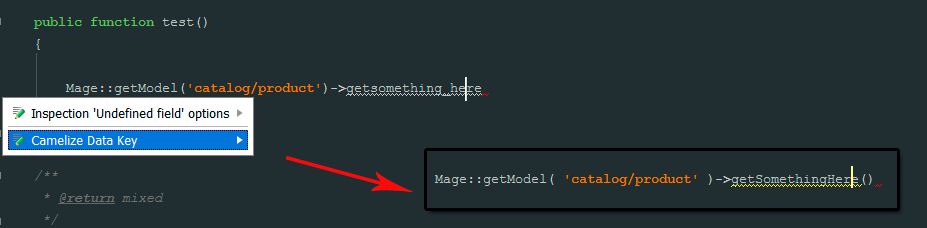
Use ALT + ENTER when the cursor is over Use ALT + ENTER (normal shortcut for intention actions) when the cursor is over some: ->getsomething_here and it will be converted to ->getSomethingHere()
*You need to prefix the method with get, set, uns or has to invoke the intention
Using PHPStorm 6+ (*) you will get code completion for factories automatically (just use Ctrl+Space like always).
This is useful not only for code completion but also for "go to declaration" feature (just use Ctrl+B / Ctrl+Click / middle click (windows)).
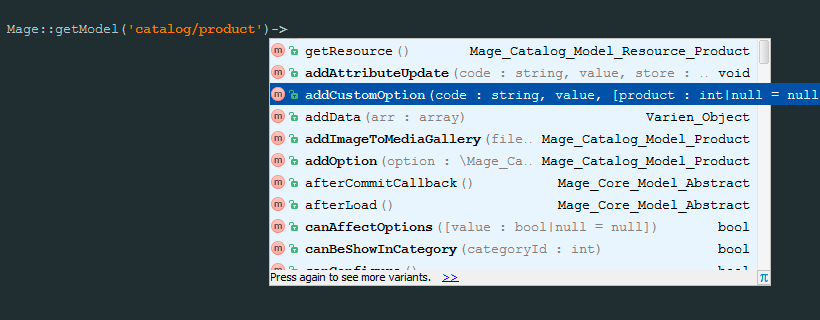
It works for $this->helper() inside templates and $this->_factory->getModel|getHelper|getSingleton|getResourceModel too
* If you are using an old PHPStorm version, you can have code completion using "add @var" action:
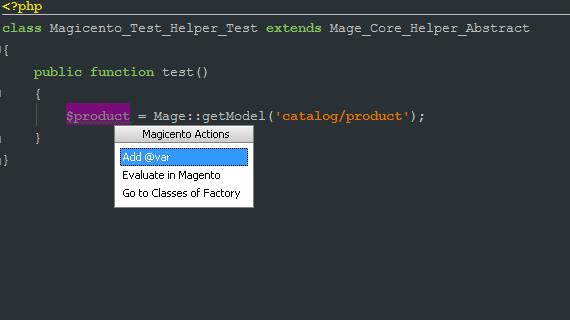
with the cursor over your $variable use Alt+M (Option+M)
PHPStorm 6+ required (with older versions you can use Alt+M > add @var $this on any .phtml file).
Make sure you have enabled this option inside Magicento settings.
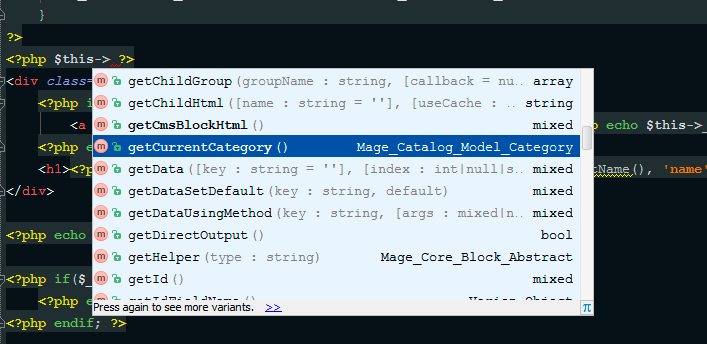
Note: sometimes is not possible to find the correct Block for the current template (for example when the template is not assigned with the layout.xml but is hardcoded inside the Block class, or when you have wrong package/theme in Magicento Settings)
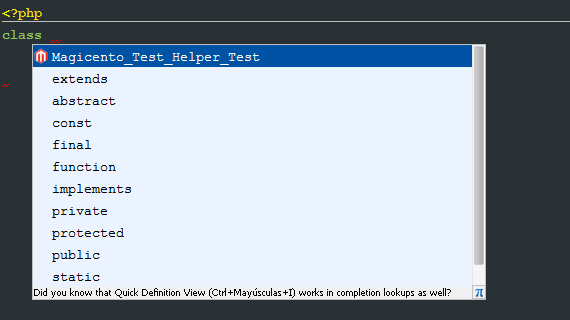
Just use Ctrl+Space after the "class " keyword
It works for controllers too
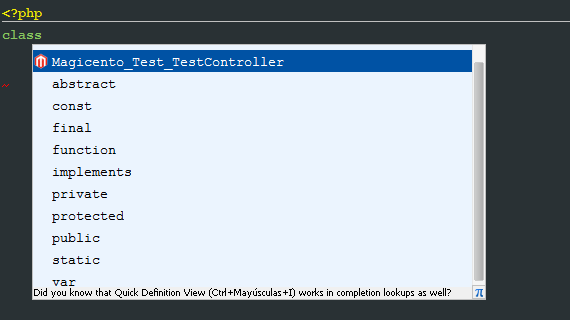
Note: this could be a big time saver because your class names won't have typo errors anymore, also is very useful when you need to refactor some module name.
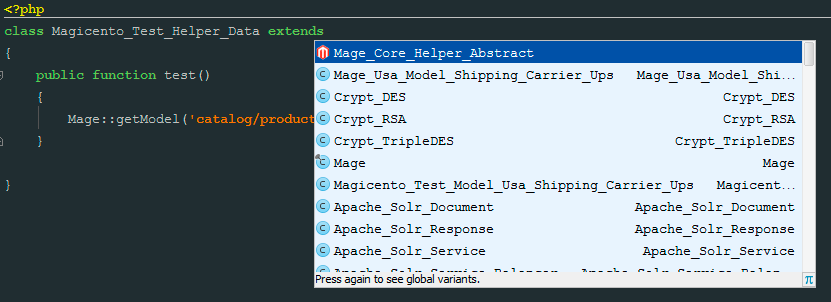
Use Ctrl+Space after the "extends " keyword.
Use Alt+M when the edit cursor is inside the class you want to rewrite and select Rewrite Class or Rewrite Controller.
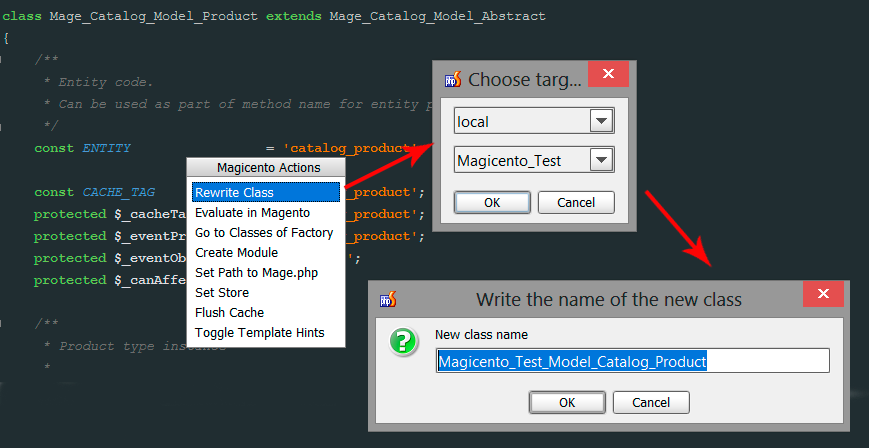
Then select the target module where the new class will be created.
And lastly you can change the default class name (proposed by Magicento) for the new class.
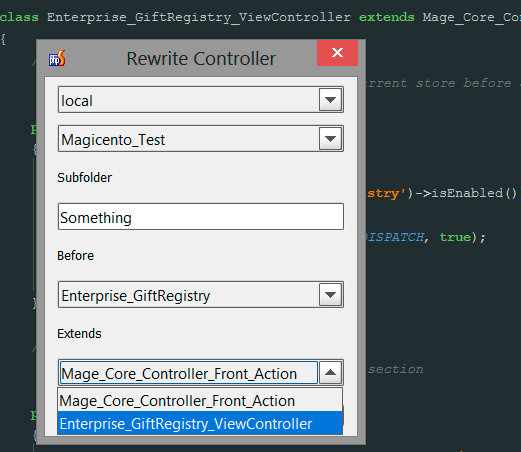
When you are rewriting a controller the dialog is a bit different:
The prior dialog will generate a class and xml like this:
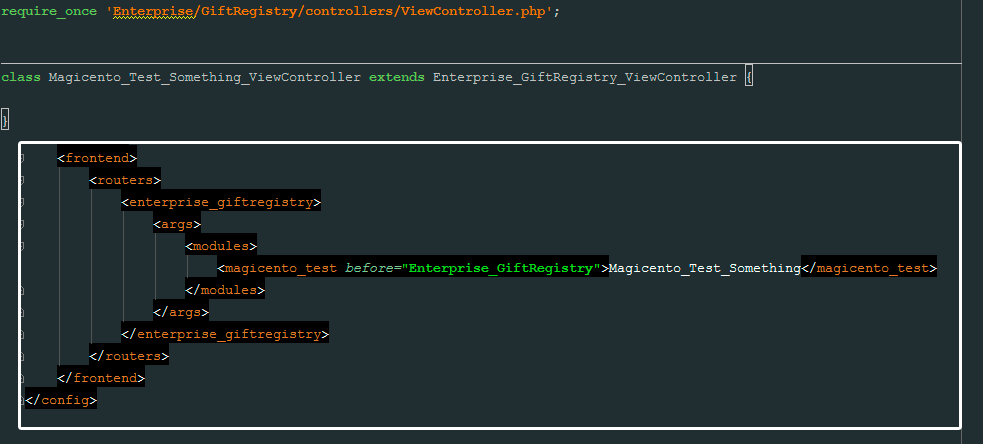
Note: the only requirement for these actions is to have a valid target module already created, with a config.xml file (config.xml can be empty, Magicento will create the correct nodes)
Use Alt+M anywhere inside any opened file and select Create Module
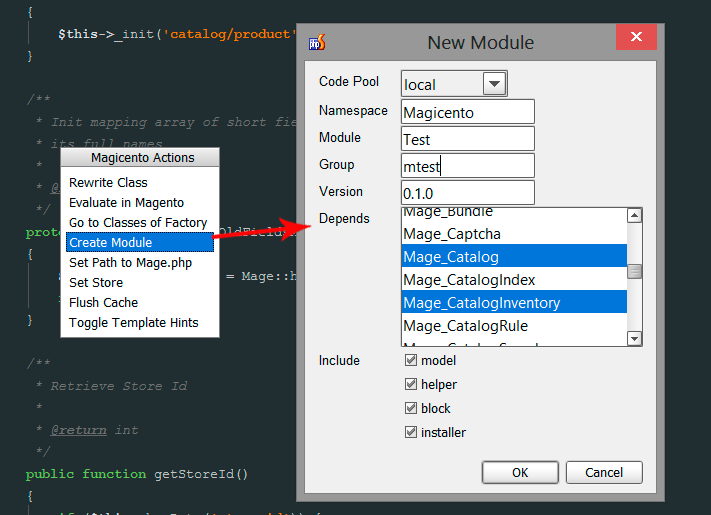
The options are self explanatory
The "Group" field can be empty and it will use the default one (NAMESPACE_MODULENAME), in the image above the default group is "magicento_test" but it was changed to "mtest"
You can choose if you want to generate the nodes and folders for the blocks, models, helpers (in this case it will create a Data.php file too) and installers.
These are the files generated by the prior dialog:
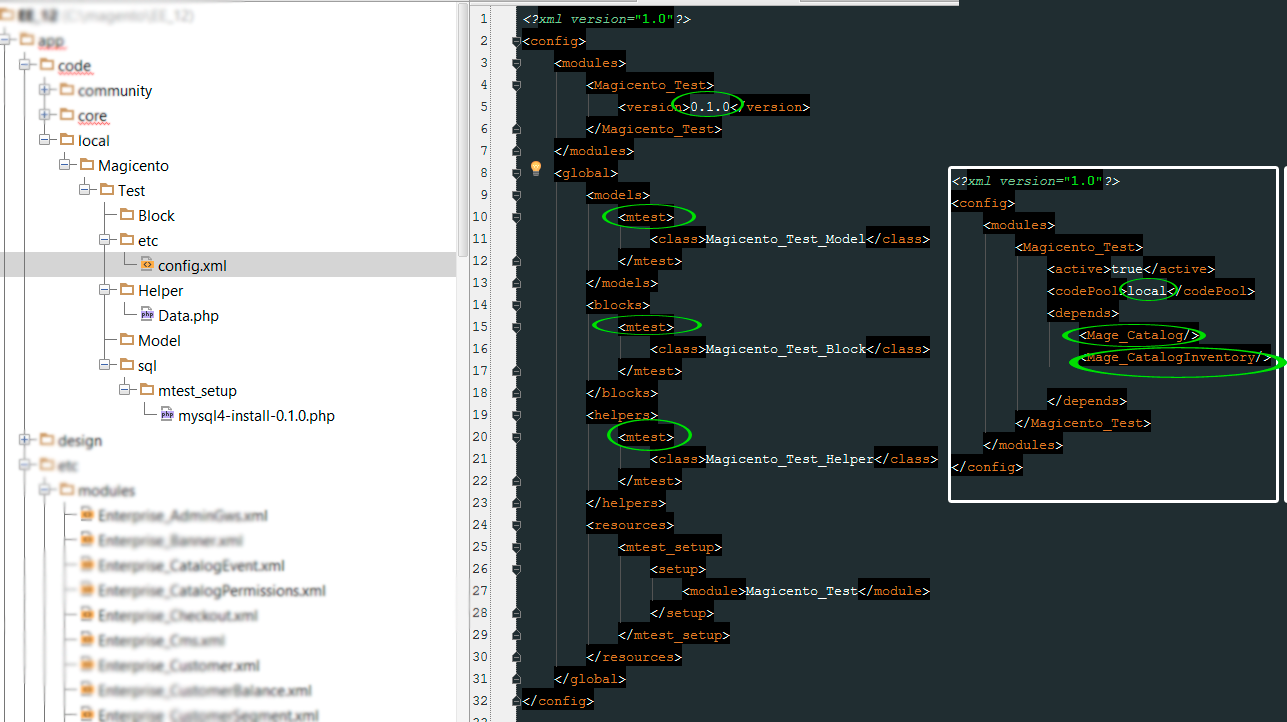
Use your "Go to" shortcut (by default Ctrl+B / Ctrl+Click) on any string representing a factory to jump to the class for that factory.
This works everywhere:
Mage::getModel('[CTRL+B HERE]')
<block type="[CTRL+B HERE]" ... >
$this->_init('[CTRL+B HERE]')
etc
Use your "Go to" shortcut (by default Ctrl+B / Ctrl+Click) on any relative path to some file.
For example
<block ... template="[CTRL+B HERE]" >
<file>some_layout_file.xml</file>
Use your "Go to" shortcut (by default Ctrl+B / Ctrl+Click) on any string representing a block name/alias or handle name.
For example
<reference name="[CTRL+B HERE]">
<update handle="[CTRL+B HERE]">
$this->getChildHtml('[CTRL+B HERE]')
$this->getBlock('[CTRL+B HERE]')
Use Alt+M when the edit cursor is inside a Block class and select the action Goto block definition in layout
Note: sometimes Magicento can't find the <block> nodes where the Block class is used. This happens for example when the block is created from PHP instead of using the layout (adminhtml grids for example).
Use Alt+M when the edit cursor is inside a Block class and select the action Go to template from block
Note: sometimes Magicento can't find the .phtml file/s where the Block class is used. This happens for example when the template is assigned with PHP instead of using the layout.
Use Alt+M when editing some template (.phtml) file and select the action Go to Block
Note: sometimes Magicento can't find the Block class reference by $this in the .phtml file. This happens for example when the template is assigned with PHP instead of using the layout.
Use your "Go to" shortcut (by default Ctrl+B / Ctrl+Click) on the event name inside any Mage::dispatchEvent call.
Mage::dispatchEvent('[CTRL+B HERE]')
Note: at the moment this works only for constant/hardcoded event names
Use Ctrl+Space), for example:
Mage::helper('[CTRL+SPACE HERE]')
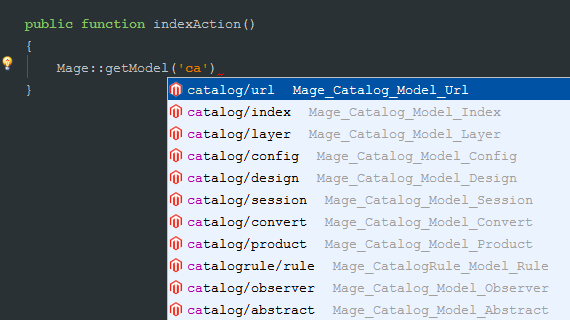
This works with $this->_init([CTRL+SPACE HERE]) inside Models and Collections too
Use Ctrl+Space) with ->getTable calls, for example:

This works with $this->_init([CTRL+SPACE HERE]) inside ResourceModels too
Use Ctrl+Space) with Mage::getStoreConfig, for example:

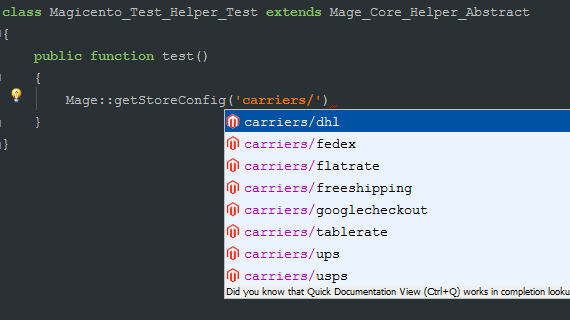
Note: this works part by part, you probably need write a forward slash "/" and use Ctrl+Space again to get the final desired config path
Use Ctrl+Space with:
$this->getChild('Ctrl+Space')
$this->getChildHtml('Ctrl+Space')
$this->getBlock('Ctrl+Space')
$this->getBlockdHtml('Ctrl+Space')
Use Ctrl+Space inside any config.xml:
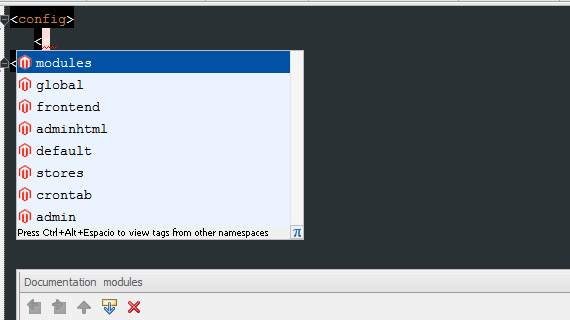
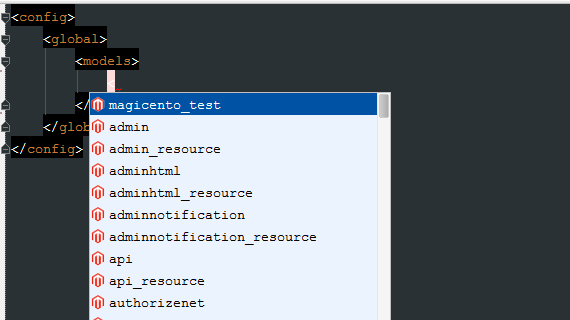
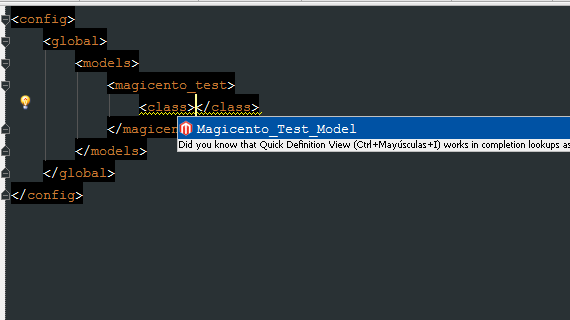
Tip: try to use it always, on any level, for nodes and also values.
Use Ctrl+Space inside any system.xml:
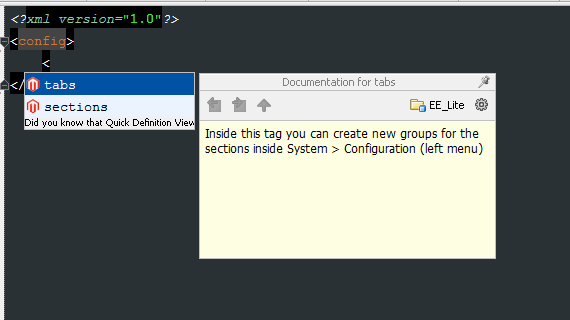
Tip: try to use it always, on any level, for nodes and also values.
Use Ctrl+Space inside any adminhtml.xml:
Tip: try to use it always, on any level, for nodes and also values.
Use Ctrl+Space inside any /layout/*.xml file:
Tip: try to use it always, on any level, for nodes, attributes and values.
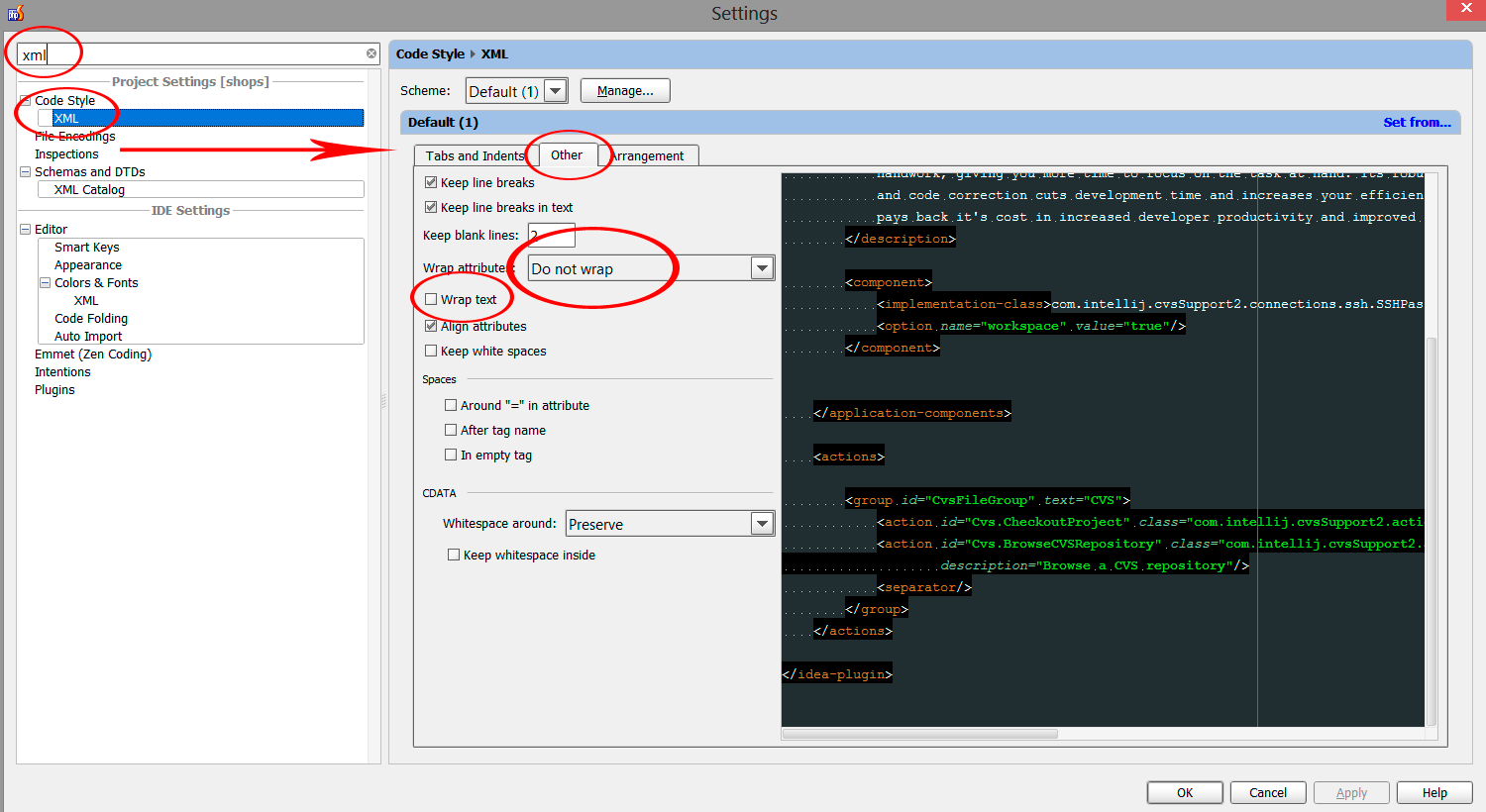
Tip: if the autoformat is breaking your original format maybe that is because you have the wrong settings for the code styles.
Please make sure you have this configuration:
Use Ctrl+Q when the cursor is over some node name or attribute name to get some brief documentation.
Note: at the moment not all the nodes and attributes are documented
Magicento will search rewrite conflicts automatically and will show you an alert if some conflict is found
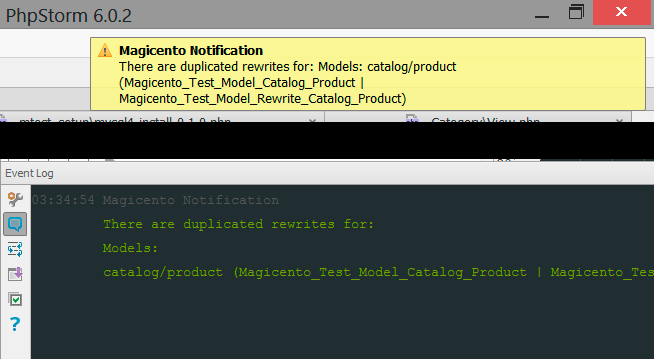
Also you can trigger this check manually using Alt+M > Check rewrite conflicts, from anywhere (inside the editor)
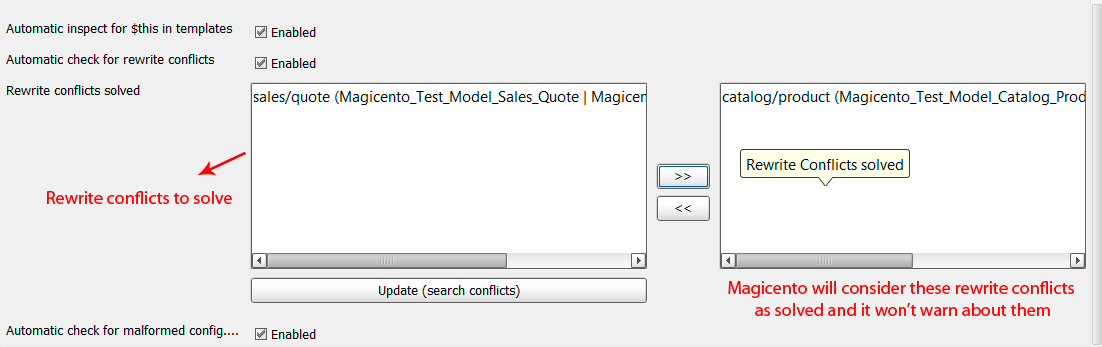
Lastly you can set the classes for the rewrite conflicts you have fixed so Magicento is won't warn you about them anymore:
File > Settings > Magicento > Rewrite conflicts solved
you can disable the auto check for rewrite conflicts from Magicento settings too.
Use Alt+M when editing some .phtml and select the action Copy Template
Then you need to select the target Package and Theme (*), a new file with the same relative path will be created there.
* At the moment this only works for existent themes (so you need to create the folder first if you want to use a new Theme)
Since Magicento 2.2.0 you can also change the final relative path for the new .phtml
Use Alt+M when editing some file located in /code/local/Mage or some .phtml/.xml and select the action Compare with Original
Use ALT + M > Compare Templates when editing any .phtml file, you can select the package and theme to compare with.
Use Alt+M when editing any file and select the action Evaluate in Magento
Write the PHP code to evaluate (it will be executed inside your Magento so you can use Magento code)
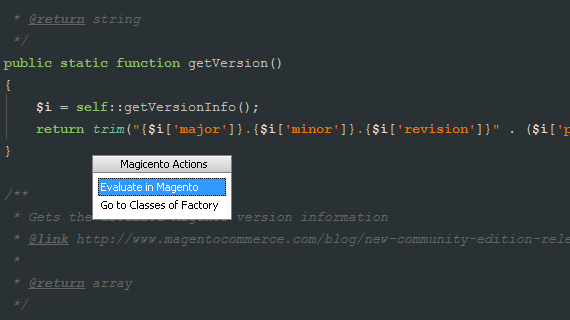
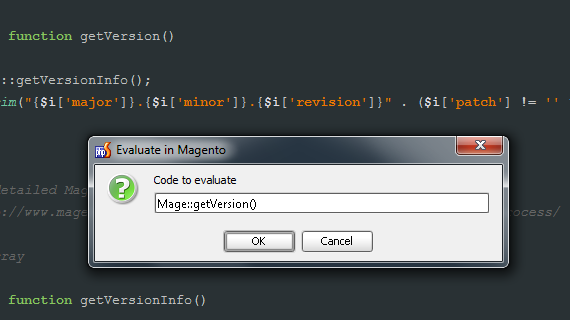
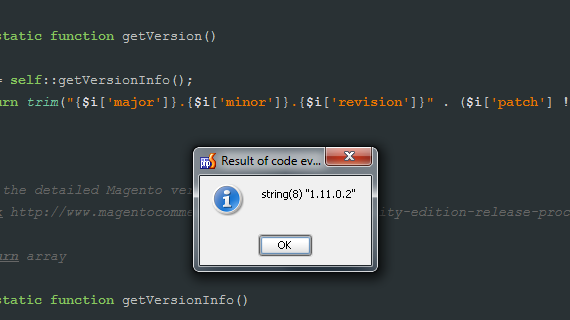
By default the code is evaluated inside a "var_dump" call, that's why you don't need to put the semicolon, and you can evaluate just one sentence.
But this can be changed from Magicento Settings
When you are not using the "var_dump" option you can write any PHP code, but if you want to see some output you need to call "echo" (or some output function) by yourself.
Use Alt+M when editing any file and select the action Toggle Template Hints
This action will toggle the template hints for the frontend and also the backend in your current Magento
Use Alt+M when editing any file and select the action Flush Cache
This action is very useful when you are developing with the cache enabled
Use Alt+M when editing any installer script (.php files inside /sql and /data folders) and select the action Remove this installer from core_resource table
This is useful when you want to run again some installer script
The core_resource table will be reseted to the prior script version so when you run Magento again the script will be executed automatically
Use Alt+M when the edit cursor is over some config path inside any Mage::getStoreConfig call and select the action Get Store Config
You can do the same evaluating the code with Alt+M > Evaluate in Magento
To obtain the specific value for some store, you need to set the current store from Magicento Settings (or use Alt+M > Set Store)
Select the text inside any .phtml file, use Alt+M and select the action Translate TExt
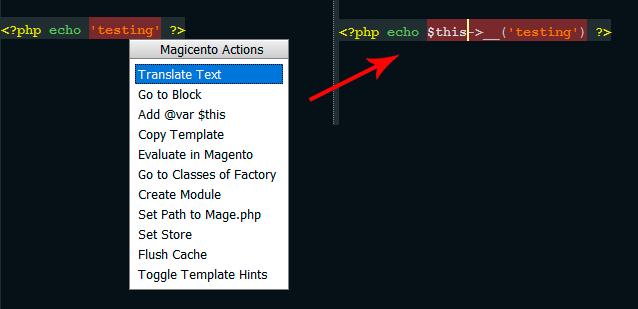
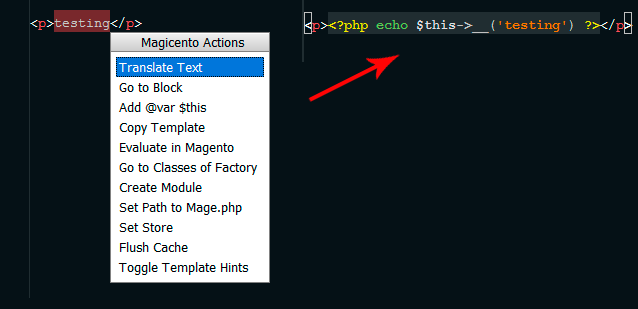
TIP: put the cursor in some part of the text to translate and use Ctrl+W to select the whole string quickly
Use Alt+M when the edit cursor is over some translated string and select the action Add Translation
Then type the translated text and select the translation .csv type (if you choose translate.csv and the file doesn't exist in the selected theme, it will be created)
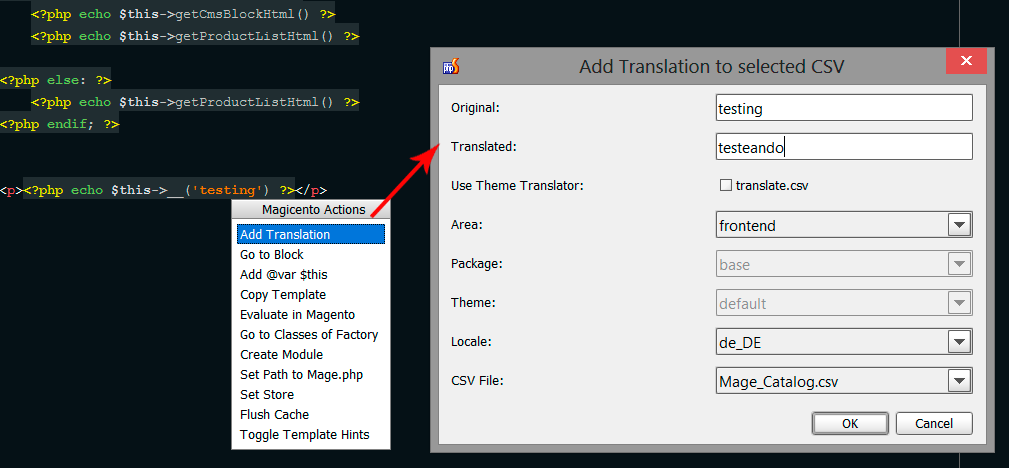
Magicento includes the Magento dictionary from here: https://github.com/tim-bezhashvyly/phpstorm-magento-dictionary
Magicento will check automatically for malformed config.xml (for example when you have an end of line after some class name/prefix, etc)
You can add your own features writing them in pure PHP!
Magicento will execute your script passing your custom params and some information about the file you are editing.
Example:
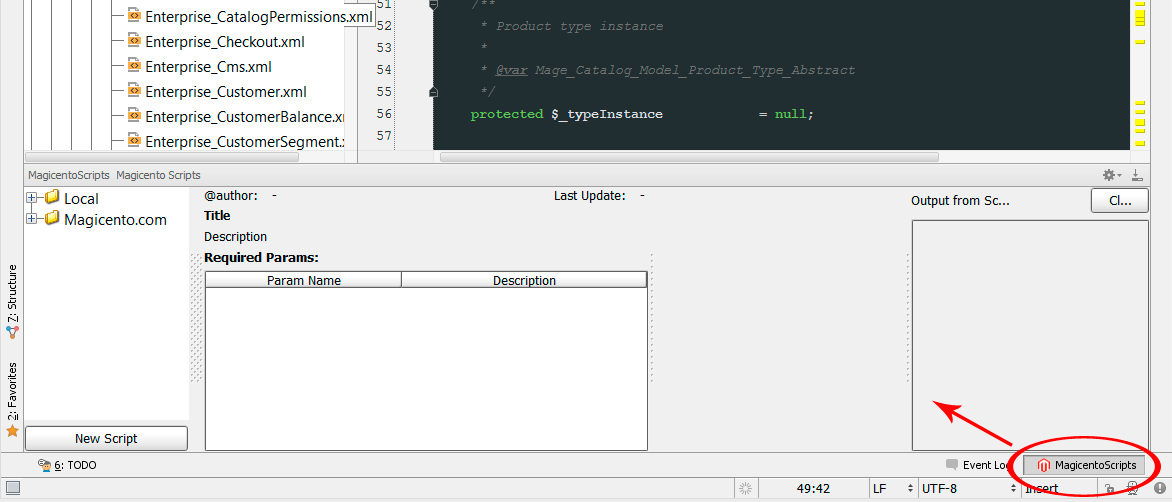
Open MagicentoScripts toolwindow
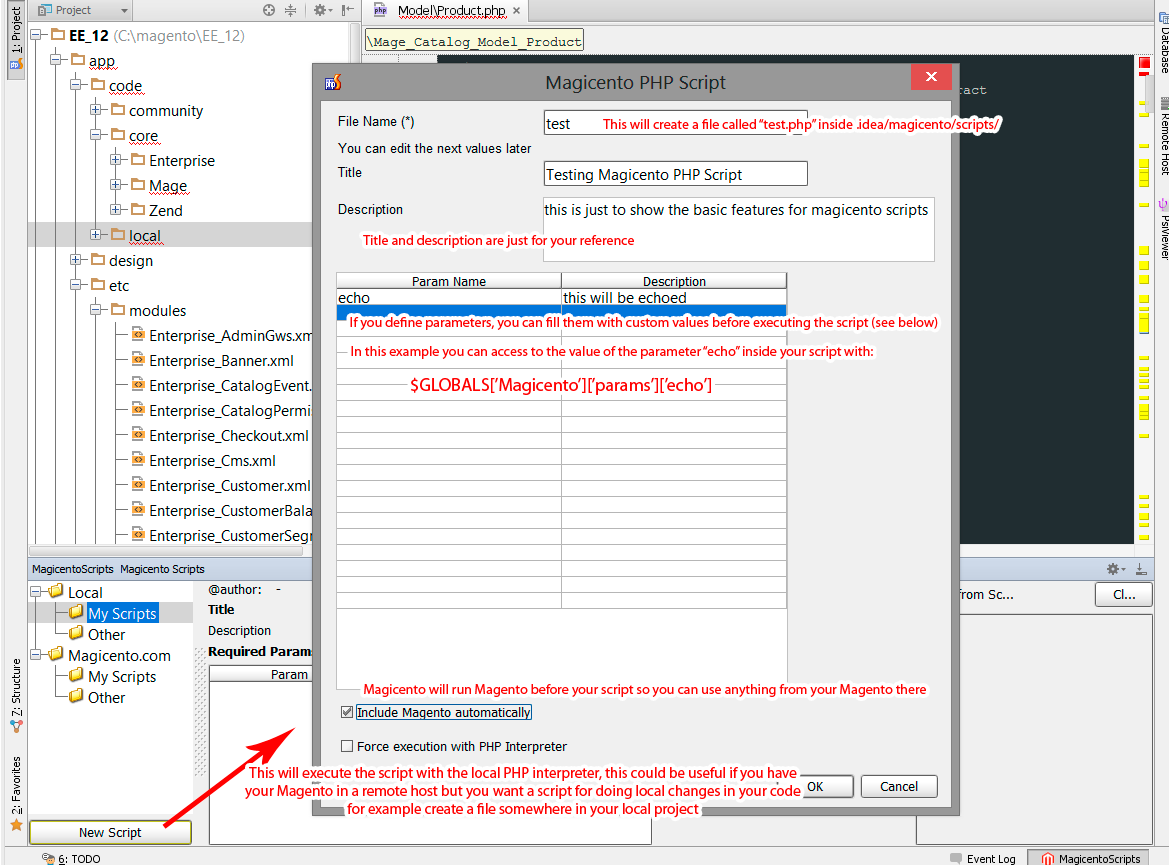
Create a new script
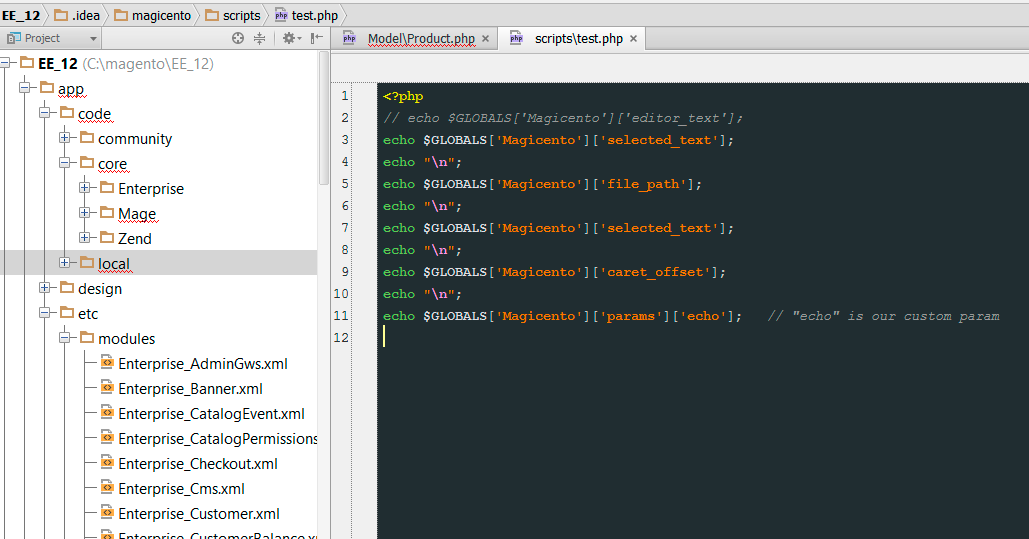
Write your PHP code
Inside $GLOBALS['Magicento'] you will have the data from your params and also some data from the current file your are editing in PhpStorm
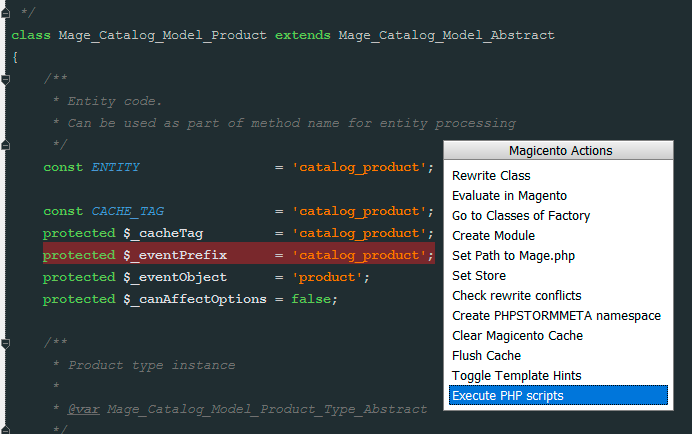
Alt+M > Execute PHP scripts anywhere when editing some file
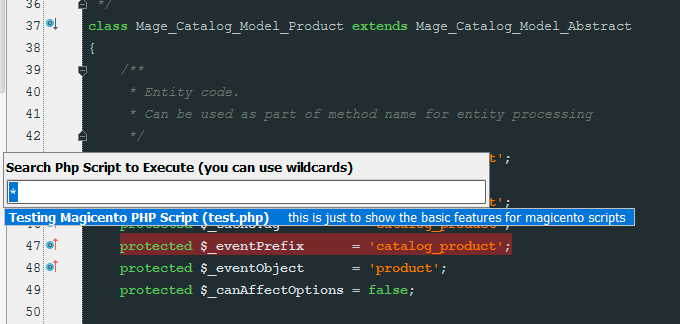
Choose the script to execute
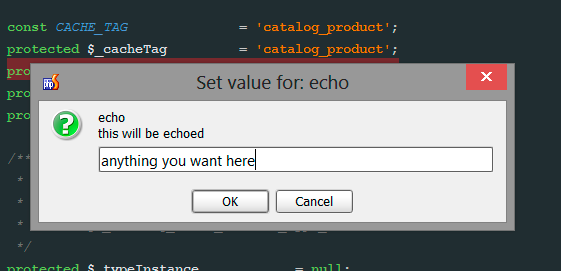
Because we added a param called "echo" Magicento is asking us for the value we want for it in our script
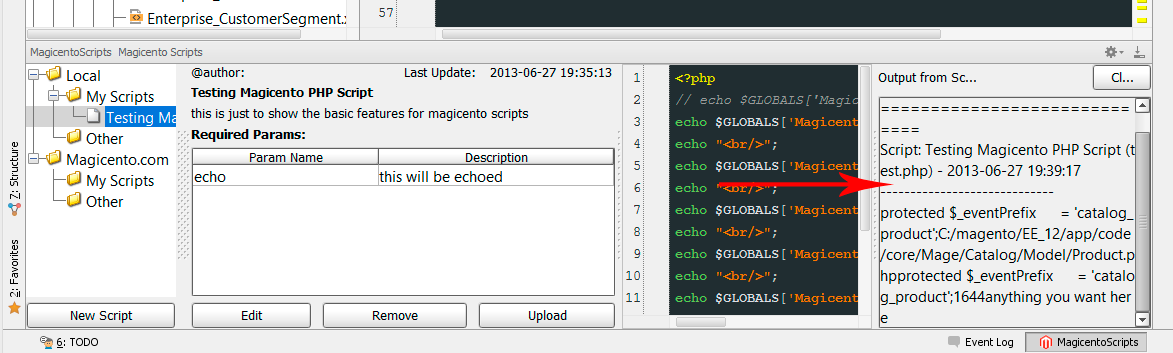
Magicento will show the output of the script (if any) inside the toolwindow
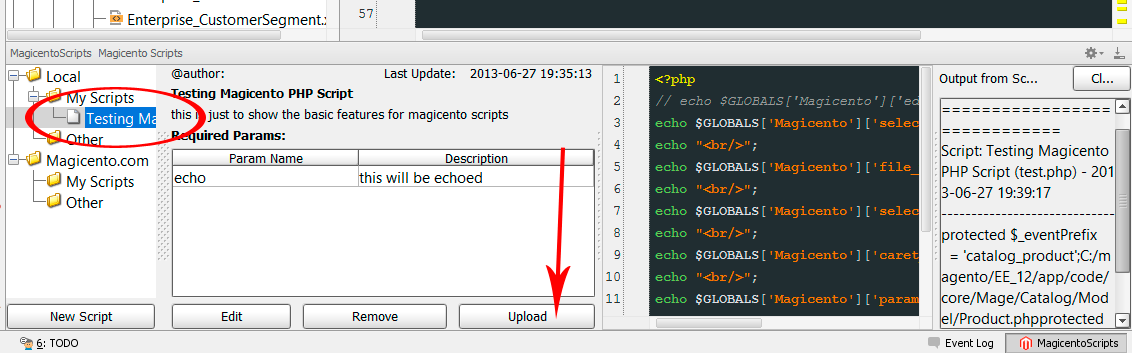
You can share your scripts with other Magicento users (or using it as a shared database for your team or for your different projects)
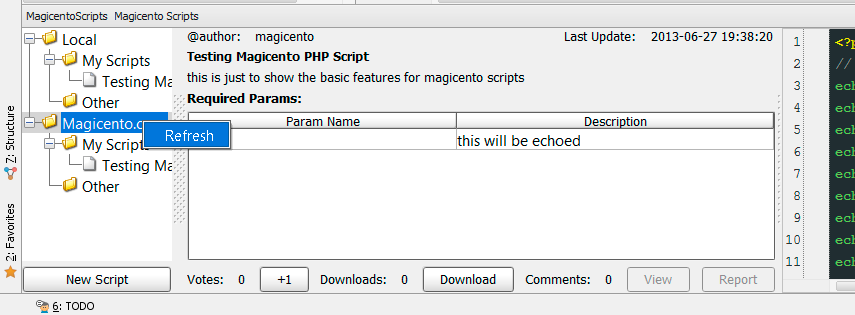
Refresh your tree (right click) to see the scripts uploaded to Magicento.com by you and other users
Download will save that script in your local project so you can use it (or edit if need it)
* This feature is in alpha state and there are a lot of things to do in this area if the community find it useful.
If your project code does not contain the Magento core files you can use Magicento anyway.
Just set the Mage.php to some local Magento installation.
Magicento will create all modules and new files under the current project, and will merge the code from your current project and the code from your local Magento
You can use ${MAGENTO_MODULE_VERSION}, ${MAGENTO_MODULE_NAMESPACE}, and ${MAGENTO_MODULE} in your File Templates
File > Settings > File and Code Templates
Use ALT + ENTER (normal shortcut for intention actions) when the cursor is over any relative path to some .phtml file
Magicento will let you choose the package and theme and will create and open that file for you.
This is useful when you are setting some template in your layout XML but that template doesn't exist yet
Use ALT + ENTER (normal shortcut for intention actions) when the cursor is over your method name in your config.xml
Magicento will create the method in the corresponding observer class (and will create the observer class if it doesn't exist too).
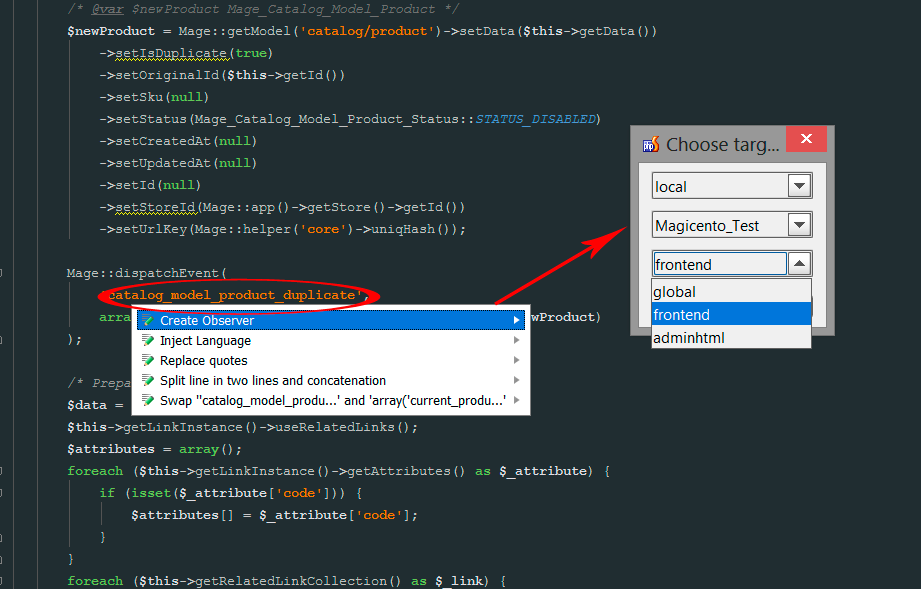
Use ALT + ENTER (normal shortcut for intention actions) when the cursor is over the event name in any call to Mage::dispatchEvent
Magicento will create the nodes in your config.xml for that event and also the observer class (if doesn't exist yet) and method
Videos (Magicento1)
You can see Magicento in action in these videos (note there are some missing features like Magicento PHP Scripts more videos comming soon):
Configuration
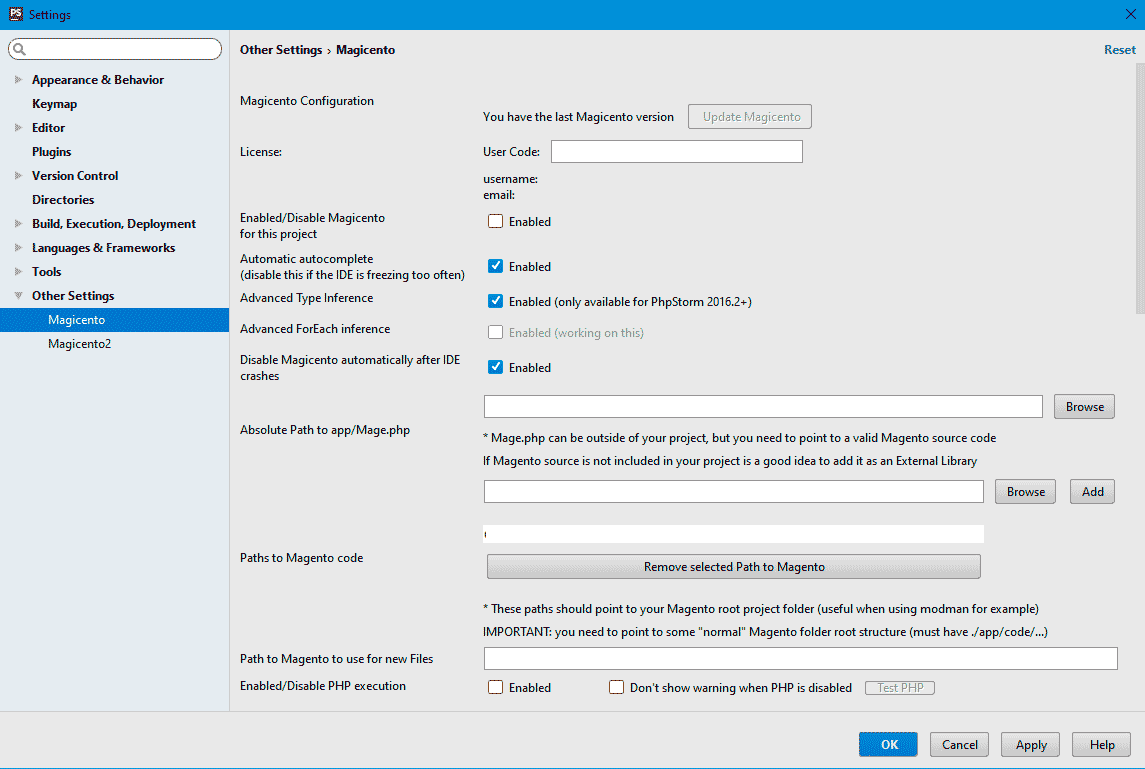
Go to File > Settings > Magicento
Magicento Changelog Click tab from above to see Magicento2 changelog
3.3.16
- Bugfix AWT event not allowed
3.3.15
- Bugfix for some Type detections
3.3.9
- NullPointerException frontName not found in Controller creation
3.3.8
- Bugfixes TypeProvider and NullPointerException for v2023.1+
3.3.7
- More Bugfixes for v2023.1+
3.3.6
- Bugfixes for PhpStorm 2023.1+
3.3.5
- Bugfix Templates PhpStorm 2022.2+
3.3.4
- Bugfix TypeProvider contract violation
3.3.3
- Compatibility with PhpStorm 2022.1+
3.1.7
- Bugfixes and Improvements:
- Compatibility with PhpStorm 2019.3+
- Type autodetection for collection foreach items
3.1.6
- Bugfixes and Improvements:
- FactoryTypeProvider2 NullPointerException
3.1.5
- Bugfixes and Improvements:
- Avoid DNS caching for PHP connections using HTTP
- Show SEARCH VARIEN OBJECT DATA KEYS option also when using autocomplete on variable instead of method ($product instead of Mage::getModel('catalog/product'))
3.1.4
- Bugfixes and Improvements:
- Live templates from Magicento only available as a new statement inside a method
3.1.3
- Bugfixes and Improvements:
- Bugfix for: Cannot find Magicento Settings
3.1.2
- Bugfixes and Improvements:
- Null pointer exceptions
- Better support for classes with namespaces
- Allow creation of admin controllers with custom admin frontname
3.1.0
- New Line Markers for Controller Actions. Jump to Handle node used in layout files from controller action methods (you can disable linemarkers from Magicento settings)
- Improvements:
- @SolvesRewriteConflict PhpDoc for classes solving rewrite conflicts. Use it to set mark the rewrites conflicts is solving the class. Ex: @SolvesRewriteConflict ClassNameInConflict|OtherClassNameInConflictSolved
- Bugfixes:
- NoSuchMethodError ClassReference
- Null pointer exceptions
- Goto handle from controller action
3.0.2
- Goto Mage::dispatchEvent method call from event name node in config.xml. Use CTRL+B (goto shortcut) when cursor is over some event name node in config.xml
- New Action: Check old admin routers. To check admin routers with custom frontname (deprecated and unsafe)
- New Line Markers:
- Observers for Mage::dispatchEvent calls
- New intention action to define custom return types for any method. Use ALT+ENTER when cursor is over some method name and choose "Add custom return type inference for this method" from menu.
- Goto table alias definition in config xml file. Use CTRL+B (or any goto shortcut you are using) when cursor is over some table alias, like ->getTable('[CURSOR HERE]') to jump to the XML defining that table alias
- Autocomplete (CTRL+SPACE) and documentation (CTRL+Q) for widget.xml files
- Go to field node defined in system.xml from Mage::getStoreConfig calls or default nodes in config.xml. Use CTRL+B Mage::getStoreConfig('[HERE]') or inside config.xml to jump to the node defining that config in system.xml file.
- New intention to create csv files from config.xml. Use ALT+ENTER when cursor is over the .csv file name
- Improvements:
- New advanced type inference, better detect for foreach elements and concatenated method calls. Only for PS2016.2+. Disable from Magicento settings if it's getting problems.
- Event search (now works with dynamic events too like "_save_after"
- Don't allow to create old admin routers anymore
- Performance optimizations
- Template hints and flush cache
- Prevent rewriting the same class on the same module twice
- Clear Magicento cache now is forcing a reindex on indexes used by Magicento too (useful when Magicento is not finding something that it should)
- Better Rewrite conflicts check (and automatically detect solved conflicts if the classes are extending each other)
- New license model, this will allow to release new versions and updates faster
- Go to Layout definition action now shows the [package/theme] first on the list, to help selecting the desired layout file and node
- Go to template from another package/theme action now does not include current template on the list and is showing the package/theme first, so it's easier to read
- Dialogs with Package and Template dropdowns are remembering the last Package and Theme selected
- Bugfixes:
- Go to classes from factory in PhpStorm 2016.2+
- Collection type inferece in PhpStorm 2016.2+
- Null pointer exceptions
- String index out of range exceptions
- Include Magento automatically option is now loaded and saved correctly for Magicento Php Scripts
- Module name autocomplete for translate files in config.xml now is in camel case
- Export to excel action created with Grid and Form is using getExcelFile instead of getExcel
2.9.4
- Added $FILE_NAME and $DIRECTORY_PATH vars to files generated by Magicento (you can use these vars inside Magicento templates)
- Bugfixes:
- Create new Controller action is using Magicento templates now
2.9.3
- Bugfixes:
- StringIndexOutOfBoundsException for trimQuotes method
2.9.2
- Bugfixes:
- NullPointer Exception when edtiting Magicento settings
2.9.1
- Bugfixes:
- ConcurrentModificationException
- CreateObserver Intention was trimming the first and last character of the final observer method name
- Factory autocomplete was adding extra quotes when there were already quotes on the autocompleted string
- NullPointer Exceptions
- Improved autocomplete for source_model tag inside system.xml
2.9.0
- Bugfixes:
- NullPointer Exceptions and IllegalStateException
- Compatibility issues with PhpStorm8 multicaret system
- ConnectionException bugfix for PhpStorm 8.0.2+
- Foreach type inference when using "as $index => $value" was assigned to $index instead of $value
- Wrong type inference for $this->getResource() inside Collections
- Go to Controller/Action from handle inside admin layout xml files was not working
- Go to layout xml handle from action inside admin controllers was not working
- New action: "Create Grid and Form". Use ALT+M anywhere to create a grid and form in the admin
- URI autocomplete doesn't need the first character to work now. Example: Mage::getModel([CTRL+SPACE HERE])
- Improved ::createBlock type inference.
- Evaluate with Magento action remember the last evaluated code (no need to type it again when prompting)
- New action: "Add to Solved Rewrite Conflict". Use ALT+M when editing some class with a rewrite conflict (you can mark the class that is solving the clonfict easier with this)
- Autcomplete works for Mage::getStoreConfigFlag too. Mage::getStoreConfigFlag('[CTRL+SPACE HERE]')
2.8.0
- Bugfixes:
- NullPointer Exceptions
- Improvements in Goto and Type inferences over factories strings
- New action: "Create Controller". Use ALT+M > Create Controller anywhere.
- New action: "Go To Controller". Use ALT+M > Go To Controller anywhere and type the URL or the frontname/controller/action
- New action "Go to template from other package theme". Use ALT+M inside any .phtml file to jump to the same template from another package/theme
- New Action to copy to clipboard relative path for templates and layout xml files. Use ALT+M > Copy Relative Path when editing some .phtml or .xml layout file
- Go to Controller from handle in Layout XML files. Use CTRL+B when cursor is over any handle to jump to the Controller/Action for that handle
- Go to Handle from Controller. Use CTRL+B when cursor is over any action method name (method declaration) inside a Controller class. Use CTRL+SPACE inside any xml file from the layout
- Autocomplete for handle nodes in layout (xml) files now includes all possible controller/actions from the code
- Type inference improvements. Now works with chained methods returning $this like ->load() and ->loadByAttribute and ->addAttributeToFilter, etc (even when Magento is defining, incorrectly, the @return type as Mage_Core_Model_Abstract instead of using @return $this)
- Added autocomplete for registry keys from Magento core. Mage::registry('[CTRL+SPACE HERE]')
- Added type/class recognition for registry keys from Magento core. Mage::registry('current_product')->[CTRL+SPACE HERE]
- Added "go to character position" support for Magicento PHP Scripts. Just append "::POSITION" to the filepath to open (see more details when creating a Magicento Php Script)
- Compare with original File Action now works with original files from "Community" pool
- Evaluate in Magento is showing the result inside the information panel too (to allow copy and check previous results). And is not showing with a dialog if the result is too long.
- Added autocomplete for system config paths inside $installer->setConfigData('CTRL+SPACE HERE')
- Compare templates and layout files dialog now only shows packages and themes containing the file to compare (same relative path)
- Compare With Original action works with original files not included in the current project (Mage.php not in the current project)
2.7.0
- Bugfixes:
- NullPointerExceptions
- StringIndexOutOfBoundsException
- Foreach item type detection conflict when using PhpDoc annotations
- Goto for skin images. Use CTRL+B (CTRL+CLICK) when the cursor is over any skin url (filepath ending with .jpg .gif or .png)
- Autocomplete and Goto for "helper" method inside Block classes: $this->helper('[CTRL+B] and also [CTRL+SPACE]')->[CTRL+SPACE]
- Improved validation for Module Creator dialog
- Magicento menu (ALT+M) now works when there isn't any opened file
- New Copy Layout File action. ALT+M inside any .xml from the layout to copy it to another package/theme
- New Compare Layout File action. ALT+M inside any .xml from the layout to compare it with another package/theme
- Magicento PHP Scripts now supports interaction with the IDE. Use $GLOBALS['MagicentoActions'][some valid action here] (create a script to see the instructions)
- New Magicento PHP Scripts: "copy to local" was updated (now it opens the local file created). Added Test script to show new Magicento Actions capabilities
- Added new config for omitting Magicento notifications. Set a list of regular expressions and the messages matching that (and not marked internally as important) won't be show anymore
- New Go to Observer action. Use ALT+M > Go To Observer and type the event name (or part of it)
- Added foreach item type inference when looping collections annotated with @var. Ex: /** @var $collection Mage_Catalog_Model_Resource_Product_Collection */ foreach($collection as $item){ $item->[CTRL+SPACE] }
- New intention for adding @var PHPDoc. Use ALT+ENTER when the cursor is over any $variable and select "Add @var PHPDoc" (this should be work better than the default intention from PhpStorm)
- Performance optimizations
2.6.5
- Bugfixes:
- NullPointerExceptions
- Autocomplete for helpers without "/data" was not working: Mage::helper('customer')->[HERE]
- Goto observer|cron method from config.xml definition now works when the method is defined in a parent class too
- Foreach model detection now recognizes collections from foreach(Mage::getResourceModel('collection_uri_here') as $model)
- Added factory autocomplete for $this->helper([CTRL+SPACE HERE]) inside templates (.phtml files)
- Source Model autocomplete inside system.xml now supports custom source models from current module
- Goto for skin urls. Use CTRL+B (CTRL+CLICK) when the cursor is over any skin url (filepath ending with .js or .css
2.6.0
- Bugfixes:
- NullPointerExceptions
- Nested objects inside statements beginning with Mage::get* were getting the wrong type
- Improved autocomplete when using getCollection, getResource, _getResource, getResourceCollection methods
- Added automatic Model detection inside foreach loop with collections. foreach($collection as $model) => no need to use @var for $model
- Added GoTo for observer methods. Use CTRL+B when the cursor is over a method name inside some Observer class to jump to the event|cron node from the config.xml for that method.
- Added data installer and mysql4 prefix options to Module Creator dialog
- Add quotes automatically if needed when using factory autocomplete. Mage::getModel([CTRL+SPACE HERE])
- Added autocomplete for SQL conditions in addAttributeToFilter and addFieldToFilter. Use Ctrl+Space *->addAttributeToFilter('*', array( '[HERE]' ))
- Added Camelize Data Key intention for setData and getData methods. Use ALT+ENTER to convert ->setData('some_key', $someValue) to ->setSomeKey($someValue)
- Added delay setting for PHP features. This could be useful if you have your own external script for uploading the eval.php to your server
- Added button for testing PHP settings in Magicento Settings form
2.5.0
- Bugfixes:
- NullPointerExceptions
- Return correct type for chained methods from factory methods, ex: Mage::getModel('catalog/product')->getCategory()->[CTRL+SPACE]
- Magicento Php Scripts Toolwindow Icon
- Create Observer Method Intention in PhpStorm v7
- Avoid false positive on malformed config.xml detection
- New action for generating PhpDoc @method in models automatically. Just use ALT+M > Add @method Php Doc when the cursor is inside a Model. If you are using the Magicento Php Script: "Get Varien Object Keys" please update it (download it again)
- New action for creating Model, ResourceModel and Collection. Use ALT+M > Create Model Triad anywhere
- Go to cron method defintion from config.xml. Use Ctrl+B (or Ctrl+Click) when the cursor is over config/crontab/jobs/*/run/model/[HERE]
- New Intention for creating cron method from config.xml (it will create the class too if it doesn't exist). Just use ALT+ENTER when the cursor is over config/crontab/jobs/*/run/model/[HERE]
- Improved UI for setting rewrite conflicts already solved (so Magicento avoid notifications about those conflicts). Go to File > Settings > Magicento > Rewrite conflicts solved
- Added autocomplete for "->setTemplate('[HERE]')"
- Added autocomplete for "->getBlockClassName('[HERE]')"
- Added autocomplete for "->getIdxName('[HERE]')"
- Added Time Out config for PHP features (File > Settings > Magicento)
2.4.0
- Bugfixes:
- NullPointerExceptions
- Copy template action was using always the original filename
- Code completion (Ctrl+Space) for factory strings now show always the full result (no need to press ctrl+space again)
- Custom Magicento Template properties now are available when creating a Module with Magicento too
- New autocomplete for get/set/uns/has methods on models (just use CTRL+SPACE as always, it works when you have the prefix already typed: Mage::getModel('catalog/product')->get[CTRL+SPACE HERE])
- New action for saving the model data keys from the DB so Magicento can give you autocomplete for magic get and set methods. Use ALT+M > Search Model Data Keys whe the cursor is over Mage::getModel('[HERE]').
- New Intention for creating layout xml file from config.xml. Use ALT + ENTER when the cursor is over the filename for the new layout update inside your confg.xml
- New Intention for camelizing raw data keys, use ALT + ENTER when the cursor is over some: ->getsomething_here and it will be converted to ->getSomethingHere() (you need to prefix the method with get, set, uns or has to invoke the intention)
- New config option for disabling autoformat when using autocomplete in layout xml files (File > Settings > Magicento > Enable Autoformat for XML code completion in Layour files)
2.3.0
- Bugfixes:
- NullPointerExceptions
- New Intention for creating Observer from Mage::dispatchEvent calls. Use ALT + ENTER when the cursor is over the event name and select Create Observer, it will create the xml definition on the selected module and the observer class/method if it doesn't exist.
- Extended list in code completion list for events in config.xml.
2.2.0
- Bugfixes:
- Tooltips for long labels on Magicento config panel
- Toggle template hints works with FPC enabled too
- Assure modules are always sorted alphabetically in rewrite class/controller action dropdown
- Added ${MAGENTO_MODULE_VERSION}, ${MAGENTO_MODULE_NAMESPACE}, and ${MAGENTO_MODULE} properties to File Templates (you can use them in your templates)
- Added support for projects with Magento core code in External Library (you need to set the Mage.php file path to that external path). All files created by Magicento are created in the current project.
- Enhanced Copy Template action. Now is possible to change the target file path
- New "Compare Template" action (Alt+M when editing any .phtml file) for comparing the template with some template with the same relative path but in a different package or theme
- Added GoTo for Observers <method> in config.xml (use Ctrl+B etc when the cursor is over the method name on the observer definition inside config.xml)
- New Magicento Intentions (Alt+Enter / ⌥(OptionKey)+Enter in Mac):
- Create Template File (Alt+Enter over some relative path to any .phtml, this works in php and xml code too)
- Create Observer Method (Alt+Enter when the cursor is over some <method> value in config.xml, this will create the observer too if it doesn't exist yet)
- Added option for disabling the autodisable Magicento feature when the IDE restarts after some crash
- Added action for enabling Magicento quickly when it is disabled (Alt+M > Enable Magicento)
2.0.1
- Bugfixes:
- Bugfix for Action: Goto Block definition in Layout
- NullPointerExceptions
- Added var $GLOBALS['Magicento']['current_project_path'] to php scripts
2.0.0
- Bugfixes:
- Freeze IDE bugfix (you need PHPStorm 6.0.3+)
- Detect rewrite conflicts
- Detect factories with params
- IndexOutOfBounds and NullPointer exceptions
- Added support for the new EP in PhpStorm 6.0.3
- Added toolwindow for creating php scripts, now you can extend the features from Magicento using your custom code, in PHP! (tutorial here: www.magicento.com/#magicento-php-scripts)
- Added new setting for enabling/disabling automatic autocomplete (this could be useful if PHPStorm stills freezing)
- Added check for detecting when PHPStorm hangs so the next time you start it Magicento will be disabled (and you don't need to uninstall it, but if that doesn't work either please check www.magicento.com/#faq-ide-broken)
- Create PhpStorm Meta Namespace action is enabled again (Alt+M anywhere). You can use this action for getting safe automatic autocomplete on factories even when that feature is disabled from Magicento Settings
- New action "Go to layout definition", use Alt+M inside any .phtml file to jump to the block/action node where that template is used
- New action "Check rewrite conflicts", use Alt+M anywhere to check if there is some rewrite conflict in your Magento
- New settings for Rewrite conflicts checks. Go to File > Settings > Magicento
- Auto check for malformed nodes in config.xml (for example class names with a new line at the end)
- Better and more autocomplete features for config.xml and layout xml
- Autocomplete for the correct collection/resource when chaining Mage::getModel(...)->getCollection() and Mage::getModel(...)->getResource()
- Added extra protection for IDE freezes. Now if the IDE hangs you can kill the process and when you start the IDE again Magicento will be disabled automatically, so you don't need to remove it and reinstall it. And after restarting the IDE you can enable Magicento again and it should work (IDE hangs should not happen too often any way)
- Support for PHP features with remote hosts (see how to configure it properly here: www.magicento.com/#configuration-php-http-remote )
- New action for clearing Magicento cache (this could be useful when Magicento doesn't seem to be reading the lastest changes)
1.7.1
- Bugfixes:
- Freeze IDE bugfix
- Check for rewrite conflicts when using Rewrite Class action
- Added support for the 1.8/1.13 $_factory Mage factory method wrapper
- IMPORTANT! please check this brief tutorial for solving problems with Magicento and take advantage of all the features
www.magicento.com/#features
1.6.2
- Bugfixes:
- Rewrite Class Action bugfix
1.6.2
- Bugfixes:
- BlockTypeProvider bugfix
1.6.0
- Bugfixes:
- Better autocomplete for resource models uri (factory string). Mage::getResourceModel('[CTRL+SPACE HERE]') and $this->_init('[CTRL+SPACE HERE]') inside Models
- Quotes in Add Translation action are not escaped now when they are added to the .csv file
- Rewrite Class Action bugfix
- Factories are recognized automatically, PHPSTORM META file is not needed anymore (requires PHPStorm 6+)
- Block type is infered automatically inside template (.phtml) files for $this var (this feature can be enabled/disabled from Magicento Settings)
- Code completion works automatically for $this->helper('...')->[CTRL+SPACE HERE] inside .phtml files
- Autocomplete for observer class name in config.xml is offering the factory version of the class name too
1.4.2
- Bugfixes:
- Autocomplete for class names
- Generate mapping for Helper classes not defined in config.xml
1.4.1
- Bugfixes:
- Compiled with JDK6 for better compatibility
- Suggestions from Magicento when using code completion for "extends" have higher priority on the list now (they should appear first always)
1.4.0
-
New action "Create PHPSTORM_META namespace":
use Alt+M when editing any file to select this action and create a new file in the project rot called "magicento.phpstorm.meta.php", this file will contain information used by PHPStorm (+v6.x) to recognize the factory class type automatically -
New action "Add Factory to PHPSTORM_META Namespace":
use Alt+M when the cursor is over some factory string, ie: Mage::getModel('[HERE]'), to update the PHPSTORM_META file with the correct class for that factory.
1.3.0
- Bugfixes:
- NullPointerExceptions
- Enhancend goto (Ctrl+B, Middle click, Ctrl+Click) for Layout XML
- Now it works with "alias" inside templates which are assigned directly from the Block class (like $this->getChildHtml('topLinks') inside header.phtml)
- Goto handle definition from >update handle="[HERE]"<
- Enhanced Rewrite Class action
- Added support for Rewriting controllers (Alt+M > Rewrite Controller when editing some controller, put the cursor inside the class).
- Suggested class name now includes the original module name too to follow convention and avoid collitions
- Rewrite works for default classes from magento even when they are not declared in config.xml
- Autocompletion for xml files inside app/etc/modules/*.xml
1.2.0
- Bugfixes:
- Disable magicento automatically for non Magento projects
- NullPointerExceptions
- Added magento dictionary from https://github.com/tim-bezhashvyly/phpstorm-magento-dictionary
- Autocomplete observer method names in config.xml in camelCase to follow coding standard
- Autocomplete for common "extends" (use Ctrl+Space after extends keyword)
- New actions for translating text.
- Select any html text or any string in php and use Alt+M > Translate Text for wrapping that text with $this->__() *
(Tip: use Ctrl+W for selecting the text to translate quickly)
* You could do the same using the native Surround With Live Templates functionality (check http://blogs.jetbrains.com/idea/tag/surround-with/) - Use Alt+M > Add Translation when the cursor is over $this->__('[HERE]') to define a new translation (it will be appended to the selected csv file, or create a new csv if not exist).
- Select any html text or any string in php and use Alt+M > Translate Text for wrapping that text with $this->__() *
1.0.1
- Bugfixes:
- Small bugfix for NullPointerException
1.0
- Bugfixes:
- Reset installer action was showing an error message even when it was working fine
- Flush FPC is working with PHP too and not only with HTTP
- PHP features using HTTP can return HTML and XML tags now
- Toggle template hints should work on any website and store now too
- Enhanced Go to Block action (now it searches on addItemRenderer actions too)
- Evaluate in magento can now be used to execute arbitrary PHP code (just go to Magicento Settings and uncheck the new option "use var_dump"). Is your responsibility to show or not some output, write valid PHP code (included semicolon)
- Layout features:
- XML code completion (use Ctrl+Space on nodes and attributes)
- XML documentation (use Ctrl+Q over any node or attrbiute)
- Goto template action (use Alt+M when editing some Block)
- Goto xml handles (use Ctrl+B or middle click on any handle to go to other declarations of the same handle in another files)
- Goto xml layout definitions for block names inside layout xml (use Ctrl+B or middle click over any name=[HERE] on any layout xml file)
- Goto xml block definition in layout Action (use Alt+M when editing any Block class to go to the block node definition in layout xml)
- Goto xml layout definitions for block names inside templates (use Ctrl+B or middle click over any name in getChild, getChildHtml, getBlock, getBlockHtml([HERE]) call)
- Autocomplete for getChild, getChildHtml, getBlock and getBlockHtml on templates (use Ctrl+Space)
- Config options for enabling/disabling layout features and choosing packages and themes (File > Settings > Magicento)
0.9.8
- Bugfixes:
- Fixed Rewrite Class action (it was not generating the correct node inside config.xml)
0.9.7
- Bugfixes:
- Fixed autodetect for Mage.php
- Fixed PHP features using HTTP (it should work fine on Virtual Machines now too)
- Fixed Layout xml code completion errors
- Added autocomplete for ->getTable([CTRL+SPACE here]) calls
- Added autocomplete for ->createBlock([CTRL+SPACE here]) calls
- Added autocomplete for ->_init([CTRL+SPACE here]) calls on models, resources and collections
- Added action for flushing Magento cache (Alt+M)
- Added action for rewriting Blocks, Helpers and Models (Alt+M over the original class to rewrite)
Video with all the features: www.magicento.com
0.9
- Bugfixes:
- Fixed bug in notification of duplicate rewrites
- New action for reseting core_resource table so the installer script can be executed again. Just use Alt+M when editing any installer script
- New action for Going to the Block from any template. Just use Alt+M when editing any template file
- New action for adding @var $this to any template. Just use Alt+M when editing any template file
- Starting code completion on layout xml files. In this release only handles are supported.
0.8.2
- Bugfixes for PHPStorm 5
0.8
- Bugfixes:
- Fixed bug for settings with multiple projects
- Fixed bug for Access is allowed from event dispatch thread only
- Fixed bug in magicento settings panel
- New action for creating a new module. Just use Alt+M (Option+M) and complete the form
- Magicento now will detect automatically when you have multiple rewrites on the same class, and will show you a warning
- Autocomplete for "sections/tab" in system.xml
- Added goto observers feature: use Ctrl+B (or middle click) over the event name in
Mage::dispatchEvent('EVENT_NAME', $params); - New action for copying the current template to a new package/theme, just use Alt+M (Option+M) when editing any .phtml file
- New action for comparing the current file with the original one, it works for any file type. For design it will try to compare against "base/default" for frontend and against "default/default" for adminhtml. For files inside /code/local|community it will try to compare against /code/core/
- New setting option for executing PHP code in magento using an HTTP request directly (useful when PHP is not accesible directly for example when using VM).
- New action for setting the store (used for evaluating code in magento), just use Alt+M (Option+M)
- New action for enabling/disabling template hints (Alt+M)
MAGICENTO2 Changelog Click tab from above to see Magicento1 changelog
1.8.8
- Bugfix Type detections
1.8.7
- Bugfixes PhpStorm 2023.1+
1.8.6
- Bugfix NullPointer exceptions
1.8.5
- Bugfix NullPointer exceptions
1.8.4
- Bugfix NullPointer exceptions
1.8.3
- Bugfix find Parent Theme for .phtml templates
1.8.1
- Improvements and bugfixes for PhpStorm 2022+
1.7.2
-
Bugfixes and Improvements:
- Save new files in current project source when using Magento2 code from external library
1.7.1
-
Bugfixes and Improvements:
- Bugfix NullPointerExceptions
1.7.0
- Code completion for /etc/ XML files (config.xml, system.xml, acl.xml, module.xml)
- New Action: override class using Preference. Use ALT+M > Override class using preference when editing some PHP Class
- New setting (Magicento2 settings panel) to exclude "Test" folders from modules in vendor (Note: click "OK", not "Apply")
- Code completion for CSS and JS files. Use CTRL+SPACE to complete the "src" in XML layouts
-
Bugfixes and Improvements:
- Intention actions (ALT+ENTER/⌥+ENTER) are now available in Magicento2 menu (ALT+M / ⌥+M in mac)
- Bugfix error when creating plugin for method with no args
- Use full namespaced class names for type hints in method arguments when creating plugins
- Goto template from XML layout now searches override templates in custom Themes not only original Module templates
- Goto CSS and JS files from layout src paths now works with Module Names prefix too. There is a new setting to show/hide "pub/static" files on the list too
- Modules in alphabetical order for GUI
- Autocomplete ACL resource ids inside ->isAllowed(HERE]
- Better goto for virtual type strings
- Better autocomplete in di.xml files
- New setting "Search files in External Libraries too" useful if your Magento2 source is set as external library
- Bugfix NullPointerExceptions
- Bugfix IllegalArgumentException
- Using HTTPS links to download/update Magicento2
1.6.0
- Type detection for collection items inside foreach
- Autocomplete for root tags in xml files. Use CTRL+SPACE in empty xml file to insert root tag with namespace and schema
-
Bugfixes and Improvements:
- Better type detection for ObjectManager::get|create methods (recognize class references too, not only strings)
- Better type detection inside foreach when using CollectionFactory
- Create controller dialog now allows to use existent routes
- Magicento2 settings was showing always as modified when no editable modules were selected
- Typo in plugin methods created by Magicento2
- Bugfix duplicate "Observer" word in namespace when creating observer using intention
- Bugfix error opening dialog when creating new plugin using intention action
- Bugfix: Intention Description Dir URL is null
- Bugfix NullPointerExceptions
1.5.0
- New Action: Go to original view file. Use ALT+M when editing some layout (.xml) or template (.phtml) from some Theme to jump to original version from module or parent theme
- New Action: Go to override view file. Use ALT+M when editing some layout (.xml) or template (.phtml) to jump to override file in some Theme
- New Intention: add dependency injection to constructor. Use ALT+ENTER when cursor is over some class field member not defined, for example $this->CURSOR_HERE, and choose "Add field and dependency" option
- Detect correct return type for getResource and getCollection methods in models
-
Bugfixes and Improvements:
- Better type detection for ObjectManager::get|create methods
- Bugfix multiple linemarkers in template files
- Bugfix phpdocs for model class in create CRUD model action
1.4.0
- New Action to create Form for Models in Admin. Use ALT+M > Create Form when editing some Model, ResourceModel or Collection
-
Bugfixes and Improvements:
- Bugfix NullPointerException
- Bugfix path to app/etc/config.xml when using a different Magento2 path to PhpStorm project root
- Better goto controller from layout xml file
- Better support for modules registered under multiple route ids
- Grid creator bugfixes and improvements,now it creates controller too
- Action to create Grid now can be executed from ResourceModel and Model classes, not only from Collection classes
- Performance imporvements
1.3.0
- New Action to create CRUD models (model, resourceModel and collection classes). Use ALT+M > Create CRUD model
- New Action to create Setup files (InstalSchema, UpgradeSchema, etc). Use ALT+M > Create Setup Files
- New Action to edit setup_module table entries (useful to execute some install or upgrade file again). Use ALT+M > Remove or edit from setup module table, when editing some Install* or Upgrade* setup file
- New Action to create Admin menu. Use ALT+M > Create Admin Menu
- New Action to create Grid for Collection in Admin. Use ALT+M > Create Grid when editing some Collection
-
Bugfixes and Improvements:
- New settings to allow custom folder and custom URL to be used for PHP features using HTTP method
- New setting to set editable modules (modules outside /app/code/ which Magicento2 should take into account as possible destination when generating new code)
- Bugfix options in Execute Magento2 Command when using PHP interpreter
- Bugfix creation of admin controllers
- Bugfix goto Controller/Action class from URL (support for multiple modules using the same frontName)
- Performance imporvements
1.2.0
- Autodetect for class types on methods: ->helper(''), ObjectManager->get|create('') and ->createBlock('')
- Go to class from class names inside strings in PHP files. Use CTRL+B (or any goto shortcut) when cursor is over a string representing a class name
- Create new Theme Action. Use ALT+M > Create New Theme
-
Bugfixes and Improvements:
- Allow to execute Magento2 commands using Php Interpreters defined in PhpStorm (useful for remote PHP config)
- Better search when typing Magento2 command to execute
- Remember last Theme selected in dialogs
- Faster toggle template hints (clear only config and fpc cache)
- More customizations for PHP config in Magicento2 settings (useful for different environments if PHP features were not working fine)
- Block Class linemarker pointing to layout now detects block tags in layout using the associated virtual type too
- Template linemarker pointing to layout now detects block tags in layout using the associated virtual type too
- Better index management
- NullPointer exceptions
1.0.0
- Execute Magento2 Commands action. Use ALT+M > Execute Magento2 Command to open a dialog with all Magento2 commands and run them from the IDE
- Toggle Template Hints action
- Clean Magento2 cache action
- Copy Template to Theme Action. Use ALT+M > Copy Template to Theme when editing some .phtml
- Extend/Override Layout file Action. Use ALT+M > when editing some .xml file from layout
-
Bugfixes and Improvements:
- Added Config Settings for Magicento2
- Support IDE project root different to Magento2 project root
- Null exceptions
0.3.1
-
Bugfixes and Improvements:
- Indexer bugfix
0.3.0
- New Action: Go to Action from URL. Use ALT+M (anywhere) and put the URL to jump to the Controller/Action executed by that URL
-
Bugfixes and Improvements:
- Changed schema paths for xml files created by Magicento2
- Plugin linemarker now detects plugins defined for interface class or other preferred classes
- Di.xml linemarker now works with classes used inside xml text like the ones from
- or
- or
- Go to class from xml texts
0.2.1
- New LineMarker to jump to Block class and block tags in layout xml files from Template files (partial implementation, will fail for templates using virtual types or assigned via php or arguments)
- New LineMarker to jump to Plugin methods and classes (if current class/method has a plugin intercepting it you will se a clickable icon on the left bar)
- New LineMarker to jump from classes to di.xml configurations associated to that class
- Create Plugin intention. Use ALT+ENTER when cursor is over some method name definition and select Create Plugin to create a Plugin (after/before/around) for that method.
- Go to for multiple attributes and values inside di.xml files. Use CTRL+SPACE to jump to different parts of the code when editing di.xml files
- Code completion for class name and namespace when creating new classes. Use: "class [CTRL+SPACE HERE]" or "namespace [CTRL+SPACE HERE]"
-
Bugfixes and Improvements:
- Go to template from block template attribute in layout XML now takes into account the Namespace_Module:: used there
- registration.php for create module action
- Go To for block class in layour xml files now works with VirtualTypes too
- bugfixed create layout for controller
0.1.0
- Code completion for layout attributes requiring a block name ("name" in referenceBlock, move nodes, etc). Use CTRL+SPACE
- Code completion for referenceContainer names in layout files. Use CTRL+SPACE
- Go to block and container definitions from referenceContainer, referenceBlock and other block names references in layout files (Use goto shortcut: CTRL+B for example)
- Go to Observer class from observer instance attribute in events.xml
- Go to dispatch method in php code from event name in events.xml
- Code completion for event names in events.xml
- Go to observer methods and event observer declarations from event dispatcher in PHP. Use CTRL+B when cursor is over ->dispatch("[CURSOR_HERE]")
- Search Events action. Use ALT+M > Search Events to find all Magento2 events and jump to their references (dispatchers in PHP, observers in events.xml etc)
- Create Observer intention. Use ALT+ENTER when cursor is over some eventname string in dispatch method and select Create Observer. ->dispatch('[ALT+ENTER HERE]')
- Refresh Magicento2 Indexes Action (ALT+M). Useful to refresh internal index if is not updated for some reason.
- Added LineMarker for block layout definitions (you will see an icon near every class name in Block class files, you can jump to block nodes in layout using that Block class)
-
Bugfixes and Improvements:
- Layout features now takes into account current area override files
- Magicento2 should be more robust with different project structures now (for example with Magento code inside /vendor/)
0.0.1
- Go to Block class from layout xml files "class" attribute (use CTRL+B or any other goto shortcut from PhpStorm when the cursor is over the class attribute value)
- Go to files (use CTRL+B or any other goto shortcut from PhpStorm when the cursor is over some string ending with .phtml, .xml .css etc)
- Code completion for Block classes inside "class" attribute in layout files (use CTRL+SPACE)
- Code completion for Template paths inside "template" attribute in layout files (use CTRL+SPACE)
- Create Module action (use ALT+M > Create Module, will create module.xml, composer.json and update config.php to enable the module)
- Create Controller action (use ALT+M > Create Controller, will create routes.xml and action class)
- Create Layout File action (ALT+M > Create Layout File, when cursor is inside some Controller)
- Go to Layout file from Controller (use ALT+M > Go to Layout, when cursor is inside some Controller)
- Go to Controller from Layout (use ALT+M > Go to Controller, when cursor is inside some layout file)
FAQ
-
How to use Magicento?
Magicento will work automatically on your Magento projects (if not please check the configuration going to File > Settings > Magicento).
You have only one shortcut: Alt+M (Option+M on mac). This shortcut is context aware, that is, you will see different options depending where the cursor is (a var definition, a .phtml file, a Block class, an intaller script, an xml etc).
The rest of the features from Magicento are accesible using the original shortcuts from PHPStorm (Ctrl+Space for autocomplete, Ctrl+B | Middle Click | Ctrl+Click for "Go to..", Ctrl+Q for documentation).
Please read the Features (really important to take advantage of Magicento)
-
How to Update Magicento?
If a new version is available for you, Magicento will show a new item (on the top): "Update Magicento" when you use ALT+M (Option+M in Mac)
Another option is tou use your private link (the one you have used to download Magicento the first time, you should have this in your email too), every plugin is unique and has a unique link to download your version.
If you don't have your private link please email me and I will send it again. -
How can I know when a new version is released?
Magicento will show an alert when a new version is available.
Moreover you will see a new option "Update Magicento" inside Magicento menu (Alt+M or Option+M in Mac) Also you can follow @magicentoplugin on twitter, I will inform about updates there too. Seguir @magicentoplugin -
How to inform about issues/problems?
Please use the issues tab on github: https://github.com/enriquepiatti/Magicento/issues. If you don't have a github account send an email to "issues at magicento.com" describing the issue, with the full trace of the exception if it's available.
-
How to suggest new features/ideas?
You can request, comment and vote new features clicking the "suggestions" box in the middle left of this screen
-
How to disable Magicento?
You can uninstall it from the plugin section on the settings panel of the IDE. Or if you want to disable it just for the current project goto "magicento" section inside the settings of the project and disable it from there.
If for some reason you can't do that (maybe the IDE hangs up or you can't start it), then you can disable it by adding this line to /.idea/magicento.xml:
<option name="enabled" value="false" />
As a last option, you can also search for "magicento.jar" in your hdd and remove it, in Windows for example it is normally located at: [USER_FOLDER]\.WebIde60\config\plugins\magicento.jar and in Mac at: ~/Library/Application/Support/WebIde60/magicento.jar -
PHPStorm is broken/frozen, how to solve it?
Try first uninstalling Magicento: How to disable Magicento?
If that doesn't work try removing PHPStorm logs too (in windows for PHPStorm 6+: [USER_FOLDER]\.WebIde60\system\log\)
If that doesn't work either try removing indexes, or remove the /.idea folder from your project (the IDE should start correctly if you don't start it with an opened project, and then you can remove or disable Magicento from there).
And don't hesitate to contact me by email: contacto@enriquepiatti.com or skype: enriquepiatti.
Also please remember to submit the issue (How to inform about issues/problems?), and I will try to fix it ASAP -
Cannot install Magicento. PHPStorm is closed automatically after trying to install the plugin
Try uninstalling any previous Magicento version, close all your opened projects, and install Magicento again (without opening any project)
If problem persists you can try closing the IDE and copying "magicento.jar" directly inside your IDE settings folder (and try removing the .idea folder from your projects too):
- WINDOWS: <SYSTEM DRIVE>\Users\<USER ACCOUNT NAME>\.<PRODUCT><VERSION>config\plugins\magicento.jar
- MAC: ~/Library/Application Support/<PRODUCT><VERSION>magicento.jar (ex: ~/Library/Application Support/WebIde80/magicento.jar)
- LINUX: ~/.<PRODUCT><VERSION>
-
Error java.lang.NoClassDefFoundError: org/intellij/plugins/xpathView/support/XPathSupport
Make sure "IntelliLang" and "XPathView + XSLT Support" plugins are installed and enabled. Also check you don't have any other plugin causing some conflict.
-
Error java.lang.NoClassDefFoundError: com/intellij/ide/reporter/ConnectionException
This error happens only with PhpStorm 8.0.2 and if you are using Magicento version lower than 2.9.0. So the solution is to downgrade PhpStorm or update Magicento
-
Fail to load plugin descriptor from file magicento.jar
If you are getting that error when trying to install Magicento, then probably your magicento.jar is corrupted, please contact me in that case.
-
What is the difference between Magicento and Magicento2?
They are two different products (each one with it's own license). Magicento2 is a plugin to work with Magento 2.x projects and Magicento with Magento 1.x projects.
-
Why PHPStorm?
Because I've tested a lot of IDEs and even when it's not perfect, I think it's the best option in the market
-
What versions of PHPStorm are compatible with Magicento?
Magicento1 and Magicento2 are compatible with PhpStorm versions going from 2019+ to 2020.1. It could work in later versions but is not full tested